How to Disable RAM Plus on Samsung Galaxy for Better Speed
Key Takeaways
- RAM Plus uses slower internal storage as virtual RAM, which causes micro-stutters on flagship phones
- Disabling RAM Plus is most beneficial on Galaxy devices with 8GB or more physical RAM
- Combining this with Deep Sleeping Apps can free up memory and extend battery life
Why Your Flagship Galaxy Feels Sluggish
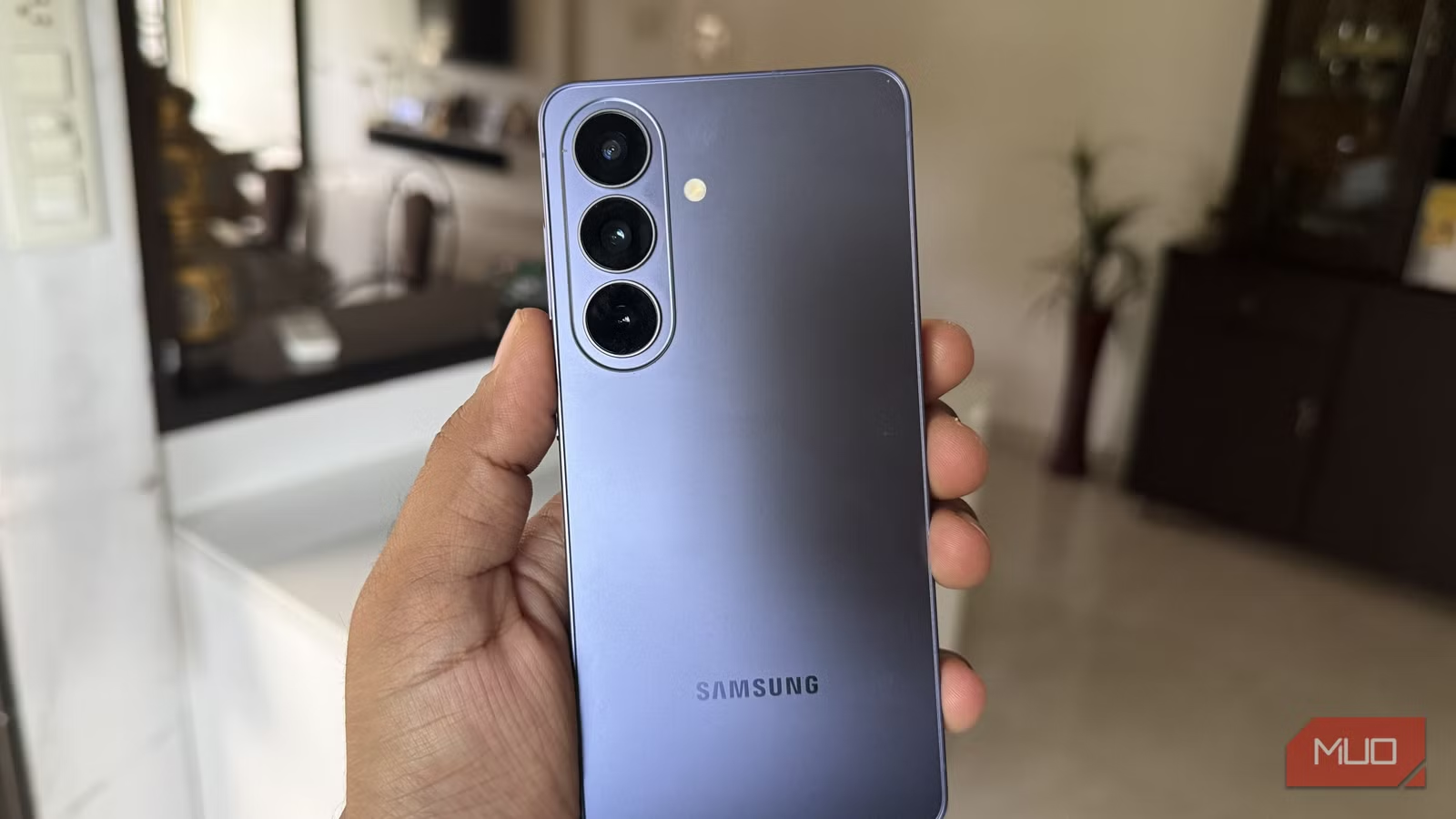
Samsung Galaxy phones pack impressive hardware. The S24 Ultra ships with 12GB of fast LPDDR5X RAM. So why does the interface sometimes stutter when you swipe between apps or scroll through settings?
The culprit is often RAM Plus, a Samsung feature that reserves a chunk of your internal storage to act as extra memory. On paper, it sounds helpful. In practice, it's trading fast physical RAM for much slower flash storage. When the system swaps processes between real RAM and virtual RAM, you get micro-stutters.
MakeUseOf's Shimul Sood recently documented her experience with this exact problem on a Galaxy S24 Ultra. After months of use, apps took longer to open, animations lost their smoothness, and the phone felt slower than it should. Her fix? Turning off RAM Plus.
What RAM Plus Actually Does
RAM Plus debuted in One UI as a way to help budget and mid-range Galaxy phones keep more apps open in the background. It works by carving out 2GB to 8GB of your internal storage as a swap file. When physical RAM fills up, the system moves inactive apps to this virtual memory space.
For phones with 4GB or 6GB of RAM, this trade-off makes sense. Having apps reload from storage is faster than closing them entirely. But flagship phones with 8GB or more RAM rarely need the extra headroom. And when the system uses virtual RAM anyway, performance suffers.
“Virtual RAM is a convenient marketing figure on a spec sheet, but in practice, it's just utilizing slower UFS storage that causes micro-stutters when the OS swaps processes.”
— Tech Analyst, Industry Reviewer
The speed difference is massive. LPDDR5X RAM operates at roughly 8,500 MB/s. UFS 4.0 storage, the fastest available, tops out around 4,200 MB/s for sequential reads. Random read and write speeds, which matter most for app switching, are significantly lower. When the system shuffles data between real RAM and storage, you feel it.
How to Disable RAM Plus
Turning off RAM Plus takes about 30 seconds. Here's the path:
- Open Settings on your Galaxy phone
- Tap Device care (or Battery and device care on some One UI versions)
- Select Memory
- Tap RAM Plus at the bottom of the screen
- Toggle the feature off or set it to 0GB
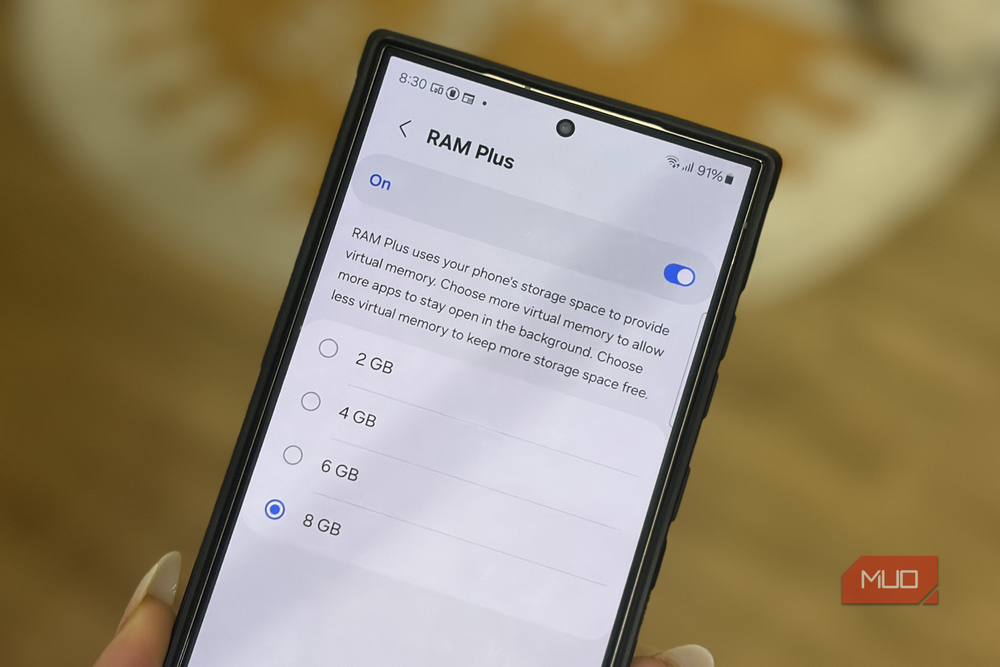
Your phone will ask you to restart. After rebooting, the system will rely only on physical RAM. On a Galaxy S24 Ultra with 12GB, that's plenty for normal use.
When to Keep RAM Plus Enabled
Not everyone should disable this. If you have a Galaxy A-series phone with 4GB or 6GB of RAM, the virtual memory buffer can prevent apps from closing too aggressively. The slight performance penalty is worth the convenience of keeping more apps ready.
Power users who run many apps simultaneously might also benefit. If you regularly hit RAM limits, whether from heavy multitasking, gaming while streaming, or running productivity apps side by side, RAM Plus provides a safety net. Test with it off first. If apps start reloading more often, turn it back on.
The 8GB threshold is a reasonable rule of thumb. Below that, consider keeping RAM Plus. Above it, try disabling.
Deep Sleeping Apps: The Second Setting Worth Checking
Sood's original fix combined disabling RAM Plus with Samsung's Deep Sleeping Apps feature. This puts rarely used apps into an aggressive hibernation state. They won't run in the background, sync data, or send notifications until you open them manually.
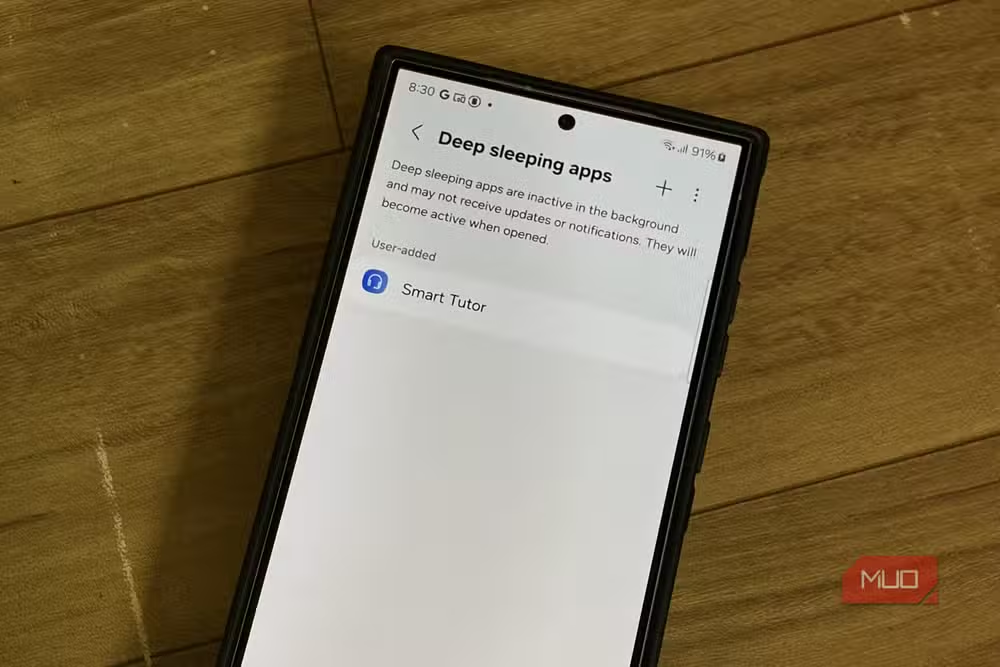
To find it:
- Open Settings
- Go to Device care then Battery
- Tap Background usage limits
- Select Deep sleeping apps
- Add apps you rarely use but want to keep installed
This works well for apps you open once a month. Shopping apps, travel booking apps, airline check-in apps. They don't need to poll servers or refresh data when you're not using them. Moving them to Deep Sleep frees RAM and saves battery.
What Reddit and Tech Communities Say
Samsung's own community forums and Reddit threads on r/Samsung and r/S22Ultra consistently recommend disabling RAM Plus on flagship devices. Users report fewer frame drops in One UI animations, faster app switching, and an overall snappier feel.
The consensus: RAM Plus looks good on a spec sheet ("up to 20GB of memory!") but degrades real-world performance on phones that already have plenty of RAM. It's a feature designed for budget phones that Samsung applies across the entire lineup.
Developer Options: Background Process Limit
There's a third setting worth knowing about, though it requires enabling Developer Options. Under Developer Options, you can set a Background process limit. This controls how many apps the system keeps in memory before forcing others to close.
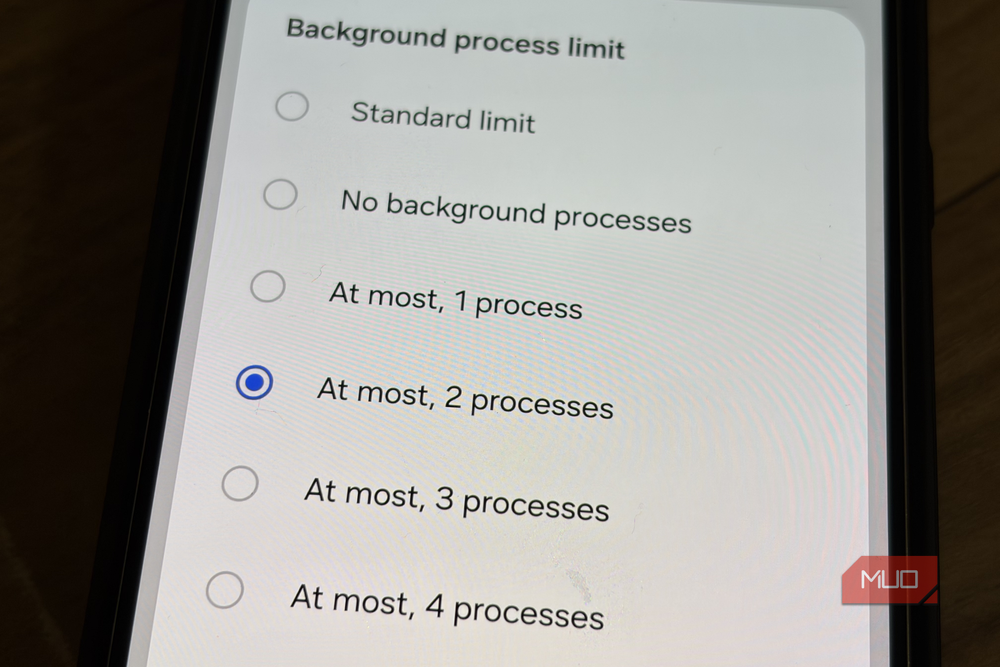
Most users should leave this at the default (Standard limit). But if you want aggressive RAM management and don't mind apps reloading more often, reducing it to 3 or 4 processes can keep your phone responsive. This is a trade-off: more available RAM versus less multitasking convenience.
The Performance Difference in Practice
Disabling RAM Plus won't transform a slow phone into a fast one. If your Galaxy is struggling because of aging hardware, software bugs, or storage issues, this won't fix those problems.
What it does fix is the specific stuttering caused by memory swapping. If you notice micro-freezes when switching apps, brief pauses in animations, or occasional lag when opening the app drawer, turning off RAM Plus addresses that directly.
The improvement is subtle but noticeable. One UI feels more consistent. Animations complete without dropped frames. Apps that were already in memory load instantly instead of with a slight delay. It's the kind of polish that flagship hardware should deliver out of the box.
Logicity's Take
Frequently Asked Questions
Will disabling RAM Plus cause apps to crash?
No. Apps won't crash more often. They may reload from scratch if you have many open, but this is normal behavior on any phone when RAM fills up.
Does turning off RAM Plus affect battery life?
Slightly, but not negatively. Less memory swapping means less storage read/write activity, which can marginally improve battery efficiency.
Can I adjust RAM Plus instead of disabling it completely?
Yes. Samsung lets you set RAM Plus to 0GB, 2GB, 4GB, 6GB, or 8GB. Setting it to 2GB gives a small buffer without aggressive swapping.
Which Samsung phones benefit most from disabling RAM Plus?
Flagship devices with 8GB or more RAM, including the Galaxy S23, S24, and S25 series, plus recent Galaxy Z Fold and Z Flip models.
Is RAM Plus the same as zRAM or swap on other Android phones?
Similar concept, different implementation. Most Android phones use zRAM (compressed RAM) rather than storage-based swap. Samsung's RAM Plus is storage-based, which is slower.
Another look at software decisions that frustrate power users
Need Help Implementing This?
Source: MakeUseOf
Huma Shazia
Senior AI & Tech Writer
اقرأ أيضاً

رأي مغاير: كيف يؤثر اختراق الأمن الداخلي الأميركي على شركاتنا الخاصة؟
في ظل اختراق عقود الأمن الداخلي الأميركي مع شركات خاصة، نناقش تأثير هذا الاختراق على مستقبل الأمن السيبراني. نستعرض الإحصاءات الموثوقة ونناقش كيف يمكن للشركات الخاصة أن تتعامل مع هذا التهديد. استمتع بقراءة هذا التحليل العميق

الإنسان في زمن ما بعد الوجود البشري: نحو نظام للتعايش بين الإنسان والروبوت - Centre for Arab Unity Studies
في هذا المقال، سنناقش كيف يمكن للبشر والروبوتات التعايش في نظام متكامل. سنستعرض التحديات والحلول المحتملة التي تضعها شركات مثل جوجل وأمازون. كما سنلقي نظرة على التوقعات المستقبلية وفقًا لتقرير ماكنزي

إطلاق ناسا لمهمة مأهولة إلى القمر: خطوة تاريخية نحو استكشاف الفضاء
تعتبر المهمة الجديدة خطوة هامة نحو استكشاف الفضاء وتطوير التكنولوجيا. سوف تشمل المهمة إرسال رواد فضاء إلى سطح القمر لconducting تجارب علمية. ستسهم هذه المهمة في تطوير فهمنا للفضاء وتحسين التكنولوجيا المستخدمة في استكشاف الفضاء.