How to Check If Your Laptop's USB Port Is Actually Fast
Key Takeaways
- USB naming has become confusing, with standards like USB 3.0 renamed multiple times within a single generation
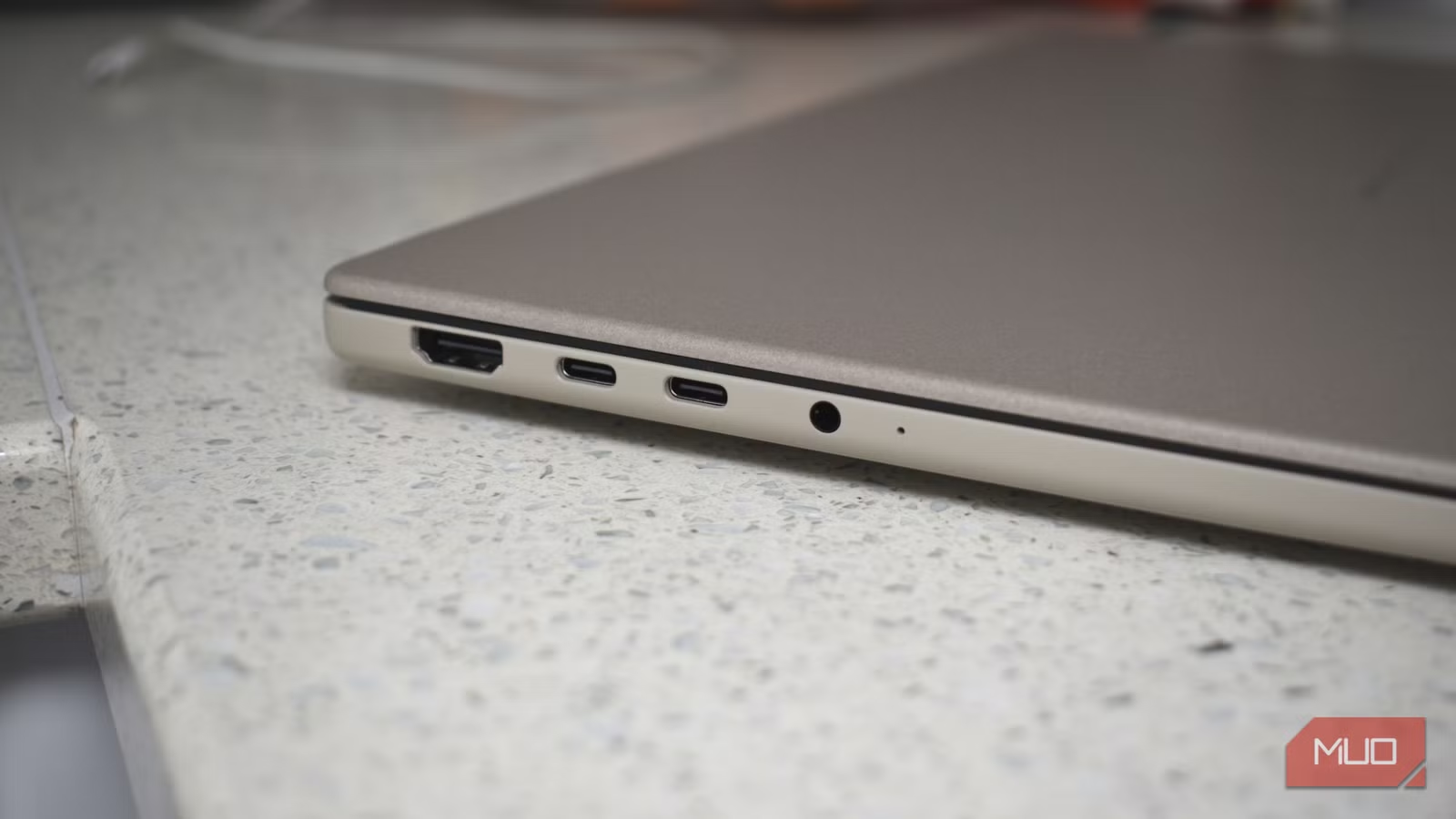
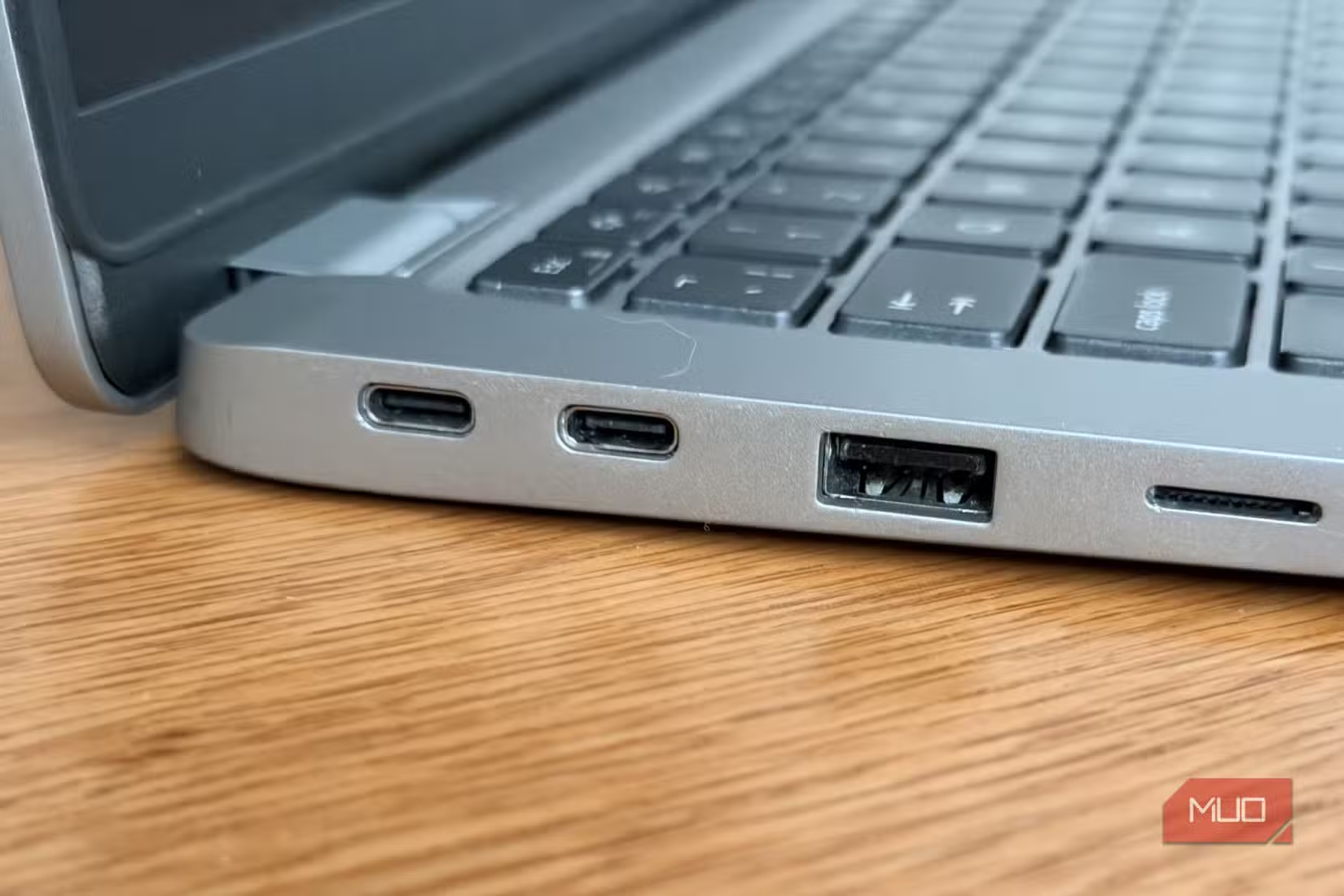
- Identical USB-C ports on the same laptop can have vastly different speeds, from 480Mbps to 40Gbps
- Both your port AND your cable determine actual transfer speeds, and either can be the bottleneck
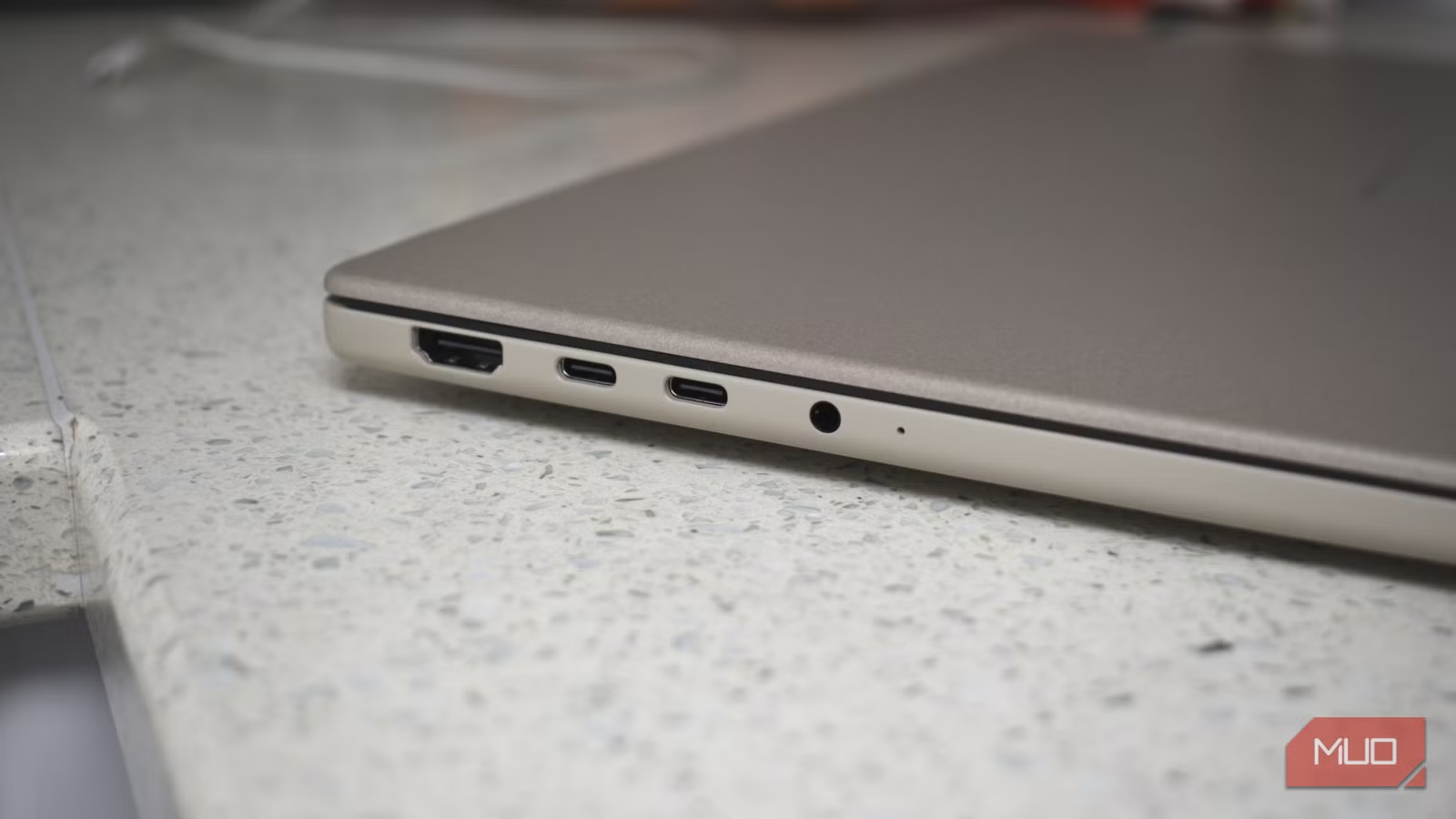
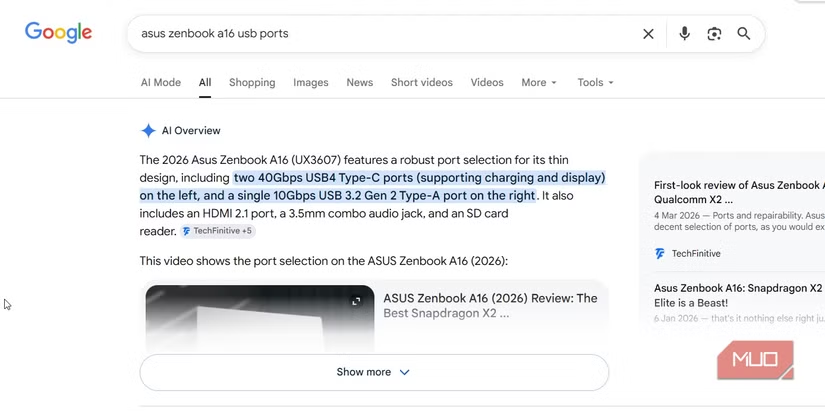
USB ports used to be simple. Plug something in, it works, move on. But modern laptops pack different USB standards behind identical-looking ports. Some support Thunderbolt or USB4 speeds. Others handle basic data or charging only. And manufacturers rarely explain which is which.
The result? That external SSD you bought for fast transfers might be crawling along at USB 2.0 speeds because you plugged it into the wrong port. Or your cable is silently throttling performance. Either way, you're leaving speed on the table.
USB Naming Has Become a Confusing Mess
Before checking your ports, you need to understand why this confusion exists. USB naming schemes have been criticized for years, yet they keep getting worse.
USB 3.0 became USB 3.1 Gen 1, which later became USB 3.2 Gen 1. Meanwhile, USB 3.1 Gen 2 became USB 3.2 Gen 2. Then USB4 arrived alongside Thunderbolt 3 and Thunderbolt 4, all using the same USB-C connector. Even industry veterans struggle to keep track.
| Standard | Max Speed | Connector | Port Indicator |
|---|---|---|---|
| USB 2.0 | 480Mbps | USB-A / USB-C | Black or white insert |
| USB 3.2 Gen 1 (USB 3.0) | 5Gbps | USB-A / USB-C | Usually blue |
| USB 3.2 Gen 2 | 10Gbps | USB-A / USB-C | Blue, teal, or labeled '10' |
| USB 3.2 Gen 2x2 | 20Gbps | Mostly USB-C | Rarely labeled clearly |
| USB4 | 20-40Gbps | USB-C | USB4 logo |
| USB4 Version 2.0 | Up to 80Gbps | USB-C | USB4 logo |
| Thunderbolt 4 | 40Gbps | USB-C | Lightning bolt icon |
The gap between the slowest and fastest is massive. USB 2.0 tops out at 480Mbps. Thunderbolt 4 hits 40Gbps. That's roughly 83 times faster. Using the wrong port for an external NVMe drive means transfers that should take seconds will take minutes.
Check Your USB Port Speed on Windows
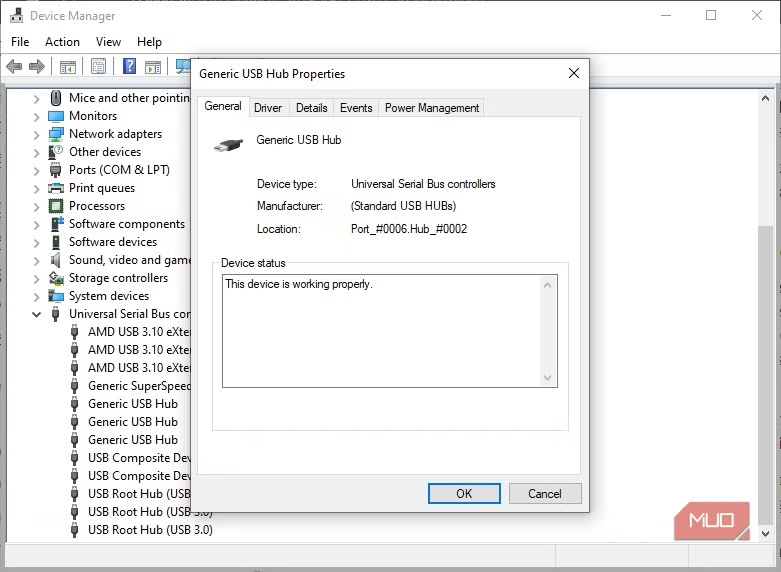
Windows makes it relatively easy to see what USB controllers your laptop has. Device Manager shows the technical details, though you'll need to interpret the naming.
- Right-click the Start button and select Device Manager
- Expand the 'Universal Serial Bus controllers' section
- Look for entries containing USB 3.0, USB 3.1, USB 3.2, or xHCI (extensible Host Controller Interface)
- Double-click any controller to see its properties and driver details
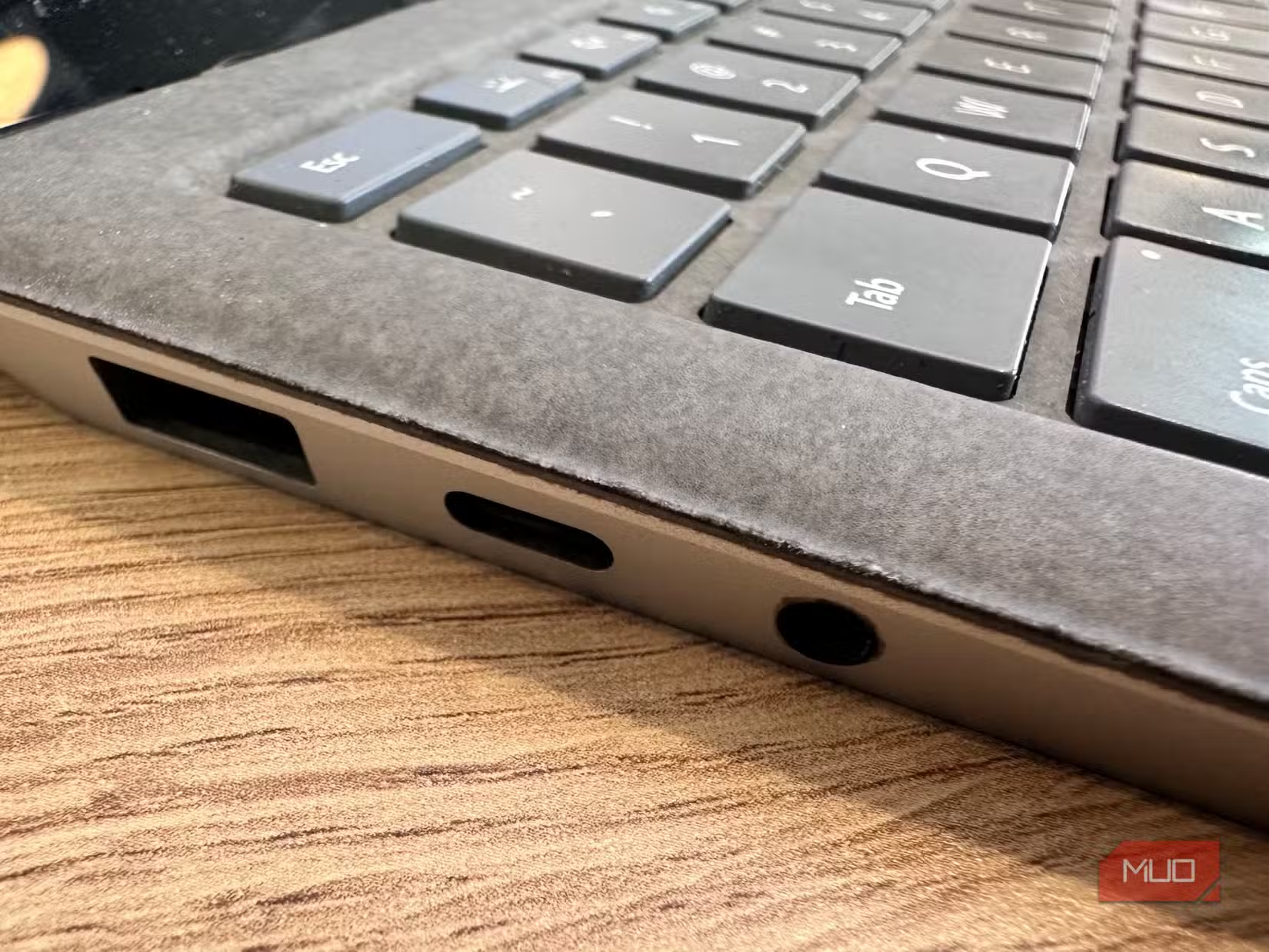
If you see 'Enhanced Host Controller' or 'EHCI', that's USB 2.0. 'xHCI' typically indicates USB 3.x support. For more detail, check your laptop manufacturer's spec sheet. It should list exactly which ports support which speeds.
Check Your USB Port Speed on Linux
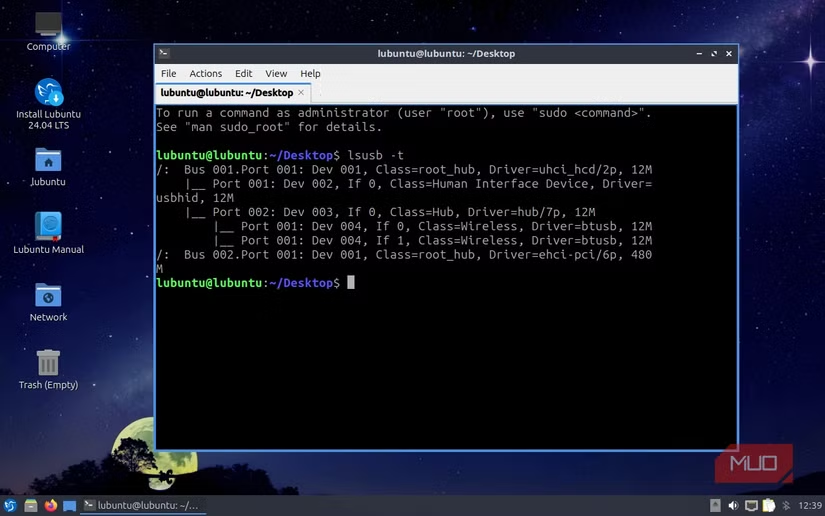
Linux provides command-line tools that give precise information about USB devices and ports. The lsusb command is your starting point.
lsusb -tThis displays a tree view of all USB buses and connected devices, including their speed class. You'll see labels like '5000M' for USB 3.0, '10000M' for USB 3.2 Gen 2, or '480M' for USB 2.0.
For even more detail, run 'lsusb -v' with sudo privileges. This dumps complete information about each USB device, including supported speeds, power requirements, and protocol versions.
Your Cable Might Be the Real Bottleneck
Here's the frustrating part: even if your port supports fast speeds, your cable might not. USB-C cables look identical but vary enormously in capability. A cheap USB-C cable might only support USB 2.0 speeds, limiting your 40Gbps port to 480Mbps.
Cables don't advertise their limitations clearly. You need to check the packaging or product listing for speed ratings. Look for explicit mentions of USB 3.2 Gen 2, USB4, or Thunderbolt certification. If a cable only says 'USB-C' with no speed rating, assume it's USB 2.0.
Hardware Testers Offer Definitive Answers
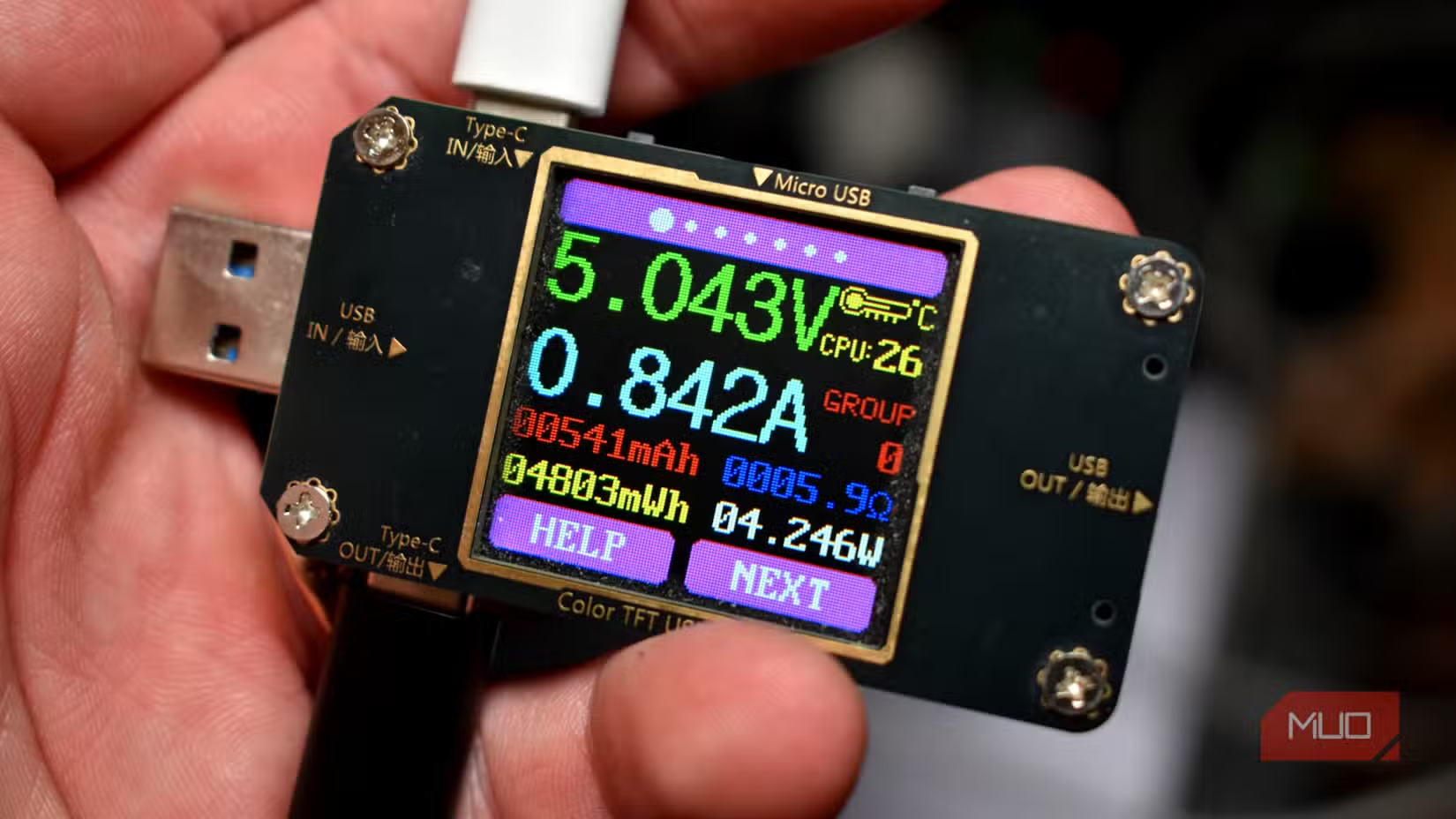
For those who want certainty, USB testing devices exist. These small gadgets plug into your port and display the actual negotiated speed. They're useful for verifying both ports and cables.
Most USB testers cost between $15 and $40. They show real-time voltage, amperage, and data transfer speeds. If you regularly work with external storage or troubleshoot USB issues, they're worth the investment.
Practical Tips for Getting Maximum Speed
- Use ports with the Thunderbolt lightning bolt symbol or 'SS10' marking for fastest speeds
- Buy cables explicitly rated for your target speed (USB 3.2 Gen 2, USB4, or Thunderbolt)
- Keep cables short. Longer cables can reduce maximum speeds
- Check your laptop's spec sheet to identify which physical ports support which standards
- For external SSDs, always use the port closest to the CPU, as it typically has the fastest connection
Logicity's Take
Another example of dealing with confusing hardware standards across different device generations
Frequently Asked Questions
Why do all my USB-C ports look the same but have different speeds?
USB-C is a connector shape, not a speed standard. The same physical port can support anything from USB 2.0 (480Mbps) to Thunderbolt 4 (40Gbps). Manufacturers choose different controllers for cost or design reasons.
How can I tell if my USB cable is slowing down transfers?
Check the cable's packaging or product listing for explicit speed ratings like USB 3.2 Gen 2 or Thunderbolt. If it only says 'USB-C' with no speed mentioned, it's likely USB 2.0. USB testing devices can verify actual speeds.
What does the blue color inside a USB port mean?
Blue typically indicates USB 3.0 or higher (5Gbps minimum). Black or white inserts usually mean USB 2.0 (480Mbps). However, USB-C ports don't use color coding, so you'll need to check symbols or specs.
Is USB4 the same as Thunderbolt 4?
They're closely related but not identical. USB4 is based on Thunderbolt 3 technology and can support up to 40Gbps. Thunderbolt 4 requires 40Gbps minimum and mandates additional features like dual 4K display support. All Thunderbolt 4 ports support USB4, but not all USB4 ports meet Thunderbolt 4 requirements.
Will a USB 2.0 device work in a USB 3.0 port?
Yes, USB is backward compatible. A USB 2.0 device will work in any USB 3.x or USB4 port, but it will only run at USB 2.0 speeds (480Mbps maximum).
Need Help Implementing This?
Source: MakeUseOf
Manaal Khan
Tech & Innovation Writer
مقالات ذات صلة
تصفح الكل
5 إعدادات في متصفحك تسرّب بياناتك حتى مع تفعيل VPN
ماذا لو أخبرتك أن متصفحك المفضل يسلّم عنوان IP الحقيقي وموقعك الفعلي وعادات تصفحك لأي موقع يطلبها، حتى مع تفعيل VPN؟ هذا بالضبط ما يحدث لملايين المستخدمين يومياً، ومنهم من يكتشف ذلك بالصدفة عند إجراء
كيف تعرض شاشة هاتف Android على التلفزيون مجاناً باستخدام Google Cast
هل تبحث عن طريقة لعرض شاشة هاتف Android على التلفزيون دون دفع أموال لتطبيقات مليئة بالإعلانات أو شراء كابلات HDMI؟ الحل موجود فعلياً داخل هاتفك: ميزة Google Cast المدمجة في نظام Android 16 تتيح لك بث
4 تطبيقات سامسونج تستحق البقاء على هاتفك Galaxy
يأتي هاتف Galaxy الجديد محملاً بأكثر من 50 تطبيقاً مُثبتاً مسبقاً، وليست جميعها ضرورية. لكن وسط هذا الكم من التطبيقات، تبرز أربعة تطبيقات سامسونج تستحق فعلاً أن تبقى على جهازك — بل قد تفضّلها على بدائ

استدعاءات يونيو 2026 للسيارات: Ford وHonda وToyota تسحب ملايين المركبات من الأسواق
سجّلت الهيئة الوطنية الأمريكية لسلامة المرور على الطرق السريعة NHTSA أكثر من 300 استدعاء للسلامة شملت أكثر من 100 شركة مصنّعة منذ بداية عام 2026، لكن استدعاءات يونيو 2026 للسيارات جاءت الأضخم والأخطر.
اقرأ أيضاً
ما الذي تحذفه الشواحن الرخيصة فعلاً من مكوناتها؟
أخطر ما في الشواحن الرخيصة أنها تعمل في معظم الأحيان. نعم، ستشحن هاتفك، وستبدو صفقة ذكية حين تدفع نصف سعر البدائل الأصلية. لكن السؤال الحقيقي ليس هل تعمل؟ بل ما الذي تخلّت عنه لتصل إلى هذا السعر؟ الإج
ASML تنفي وصول ماكينات EUV إلى الصين وتصف اتهامات واشنطن بأنها «مضرّة بسمعتها»
في تصعيد جديد لحرب الرقائق بين واشنطن وبكين، نفت شركة ASML الهولندية — المورّد الوحيد عالمياً لأنظمة الطباعة الحجرية بالأشعة فوق البنفسجية المتطرفة EUV — أن أياً من أجهزتها قد وصل إلى الصين، واصفةً ال
Grimmory: خادم كتب إلكترونية مستضاف ذاتياً يتفوق على بدائل Plex المثقلة بالفيديو
إذا جرّبت يوماً تنظيم مكتبة كتب رقمية متنامية باستخدام خوادم الوسائط الشاملة مثل Plex أو Jellyfin، فأنت تعرف الإحباط جيداً: قوائم معقدة مصممة أساساً للفيديو، وميزات القراءة مدفونة كفكرة لاحقة. الآن يق