Full Page Screenshots: Save Hours on Documentation

Key Takeaways
- Chrome's built-in full page screenshot tool requires zero software purchases or IT approvals
- Teams doing regular documentation can save 2-4 hours weekly by eliminating manual screenshot stitching
- The feature works across all major browsers, reducing training needs for diverse teams
Read in Short
Chrome has a hidden built-in tool that captures entire web pages in one screenshot. Press Cmd+Option+I (Mac) or Ctrl+Shift+I (Windows), then Cmd+Shift+P or Ctrl+Shift+P, type 'screenshot,' and select 'Capture full size screenshot.' No extensions, no software purchases, no IT tickets.
According to [The Zapier Blog](https://zapier.com/blog/full-page-screenshots-in-chrome), Chrome's built-in full page screenshot tool eliminates the need for third-party extensions or manual screenshot stitching, though it remains surprisingly hidden from most users.
If you've ever watched a team member scroll down a webpage, capture a screenshot, scroll again, capture another, and then spend twenty minutes in PowerPoint aligning the pieces—you already know this is a problem worth solving.
Why Full Page Screenshots Matter for Business Operations
Documentation isn't glamorous, but it's everywhere in business operations. Compliance teams need evidence of web-based transactions. Sales teams capture competitor pricing pages. Marketing departments archive campaign landing pages. Legal teams document terms of service changes. QA teams report bugs with full context.
The traditional approach—scrolling and capturing multiple screenshots, then manually stitching them together—creates three business problems. First, it wastes time. A single full-page capture that should take 10 seconds becomes a 5-minute exercise. Second, it introduces errors. Misaligned screenshots, missed sections, and inconsistent formatting plague manual efforts. Third, it creates bottlenecks when only certain team members know the 'trick' to do it efficiently.
How to Take Full Page Screenshots in Chrome
Google buried this feature in Developer Tools, which explains why most business users don't know it exists. But once you learn the keyboard shortcut, it becomes second nature.
- Open the web page you need to capture in Chrome
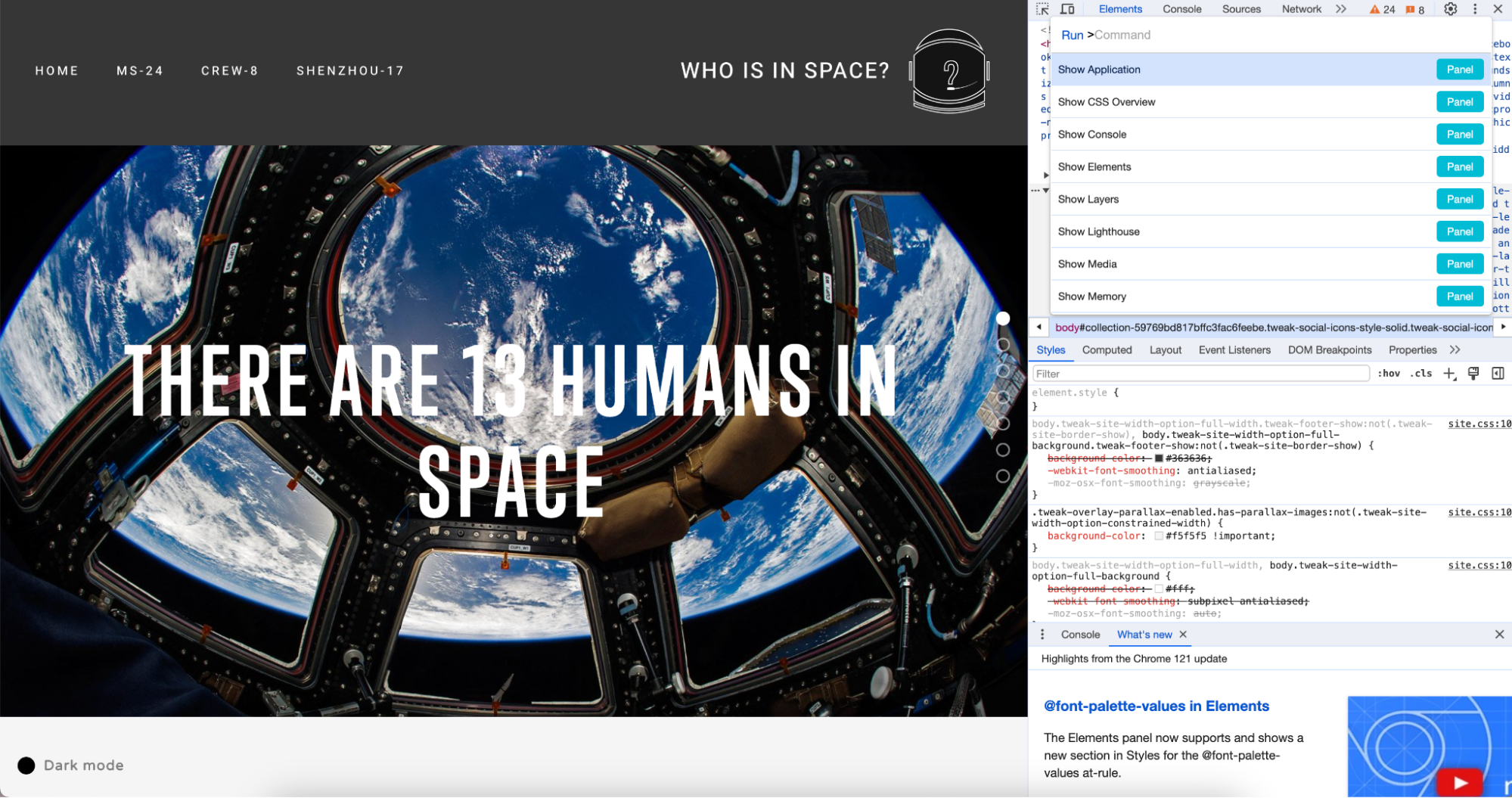
- Press Cmd+Option+I (Mac) or Ctrl+Shift+I (Windows) to open Developer Tools
- Press Cmd+Shift+P (Mac) or Ctrl+Shift+P (Windows) to open the command menu
- Type 'screenshot' in the search bar that appears
- Select 'Capture full size screenshot' from the options
- Find your complete screenshot in your Downloads folder
Quick Reference for Your Team
Mac shortcut sequence: Cmd+Option+I → Cmd+Shift+P → type 'screenshot' → select full size. Windows shortcut sequence: Ctrl+Shift+I → Ctrl+Shift+P → type 'screenshot' → select full size. The screenshot saves automatically to your Downloads folder as a PNG file.
There's one important limitation: this tool works best on standard web pages with text and images. Web applications like Google Docs may only capture the visible window rather than the full document. Testing with your specific use cases is worth the two minutes it takes.
Custom Dimensions: When Standard Full Page Isn't Enough
Sometimes you need more control than a simple full-page capture provides. Perhaps you're documenting how a page appears on mobile devices, or you need to capture a specific viewport size for consistency across a documentation set.
Chrome's Device Mode lets you specify exact dimensions before capturing. After opening Developer Tools, click the device toolbar icon (or press Cmd+Shift+M on Mac, Ctrl+Shift+M on Windows). You can select preset device sizes or enter custom dimensions. Then use the same screenshot command to capture at your specified size.
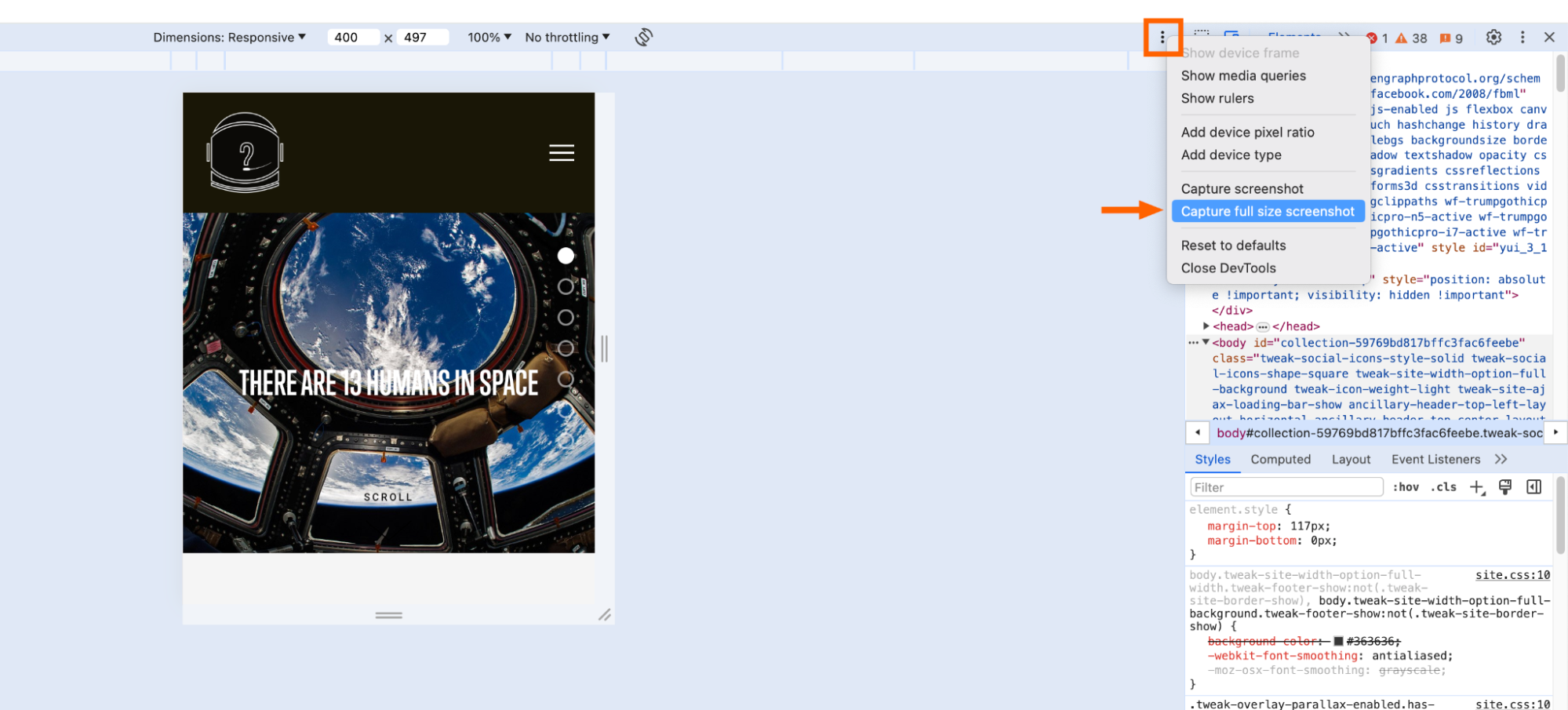
This capability proves particularly valuable for teams documenting responsive designs, creating mobile app store screenshots, or maintaining consistency across large documentation projects.
Full Page Screenshots in Other Browsers
Not everyone uses Chrome. Enterprise environments often standardize on different browsers, and your team shouldn't need browser-specific training for basic documentation tasks.
| Browser | Built-in Full Page Screenshot | Method |
|---|---|---|
| Chrome | Yes | Developer Tools command menu |
| Firefox | Yes | Right-click → Take Screenshot → Save full page |
| Safari | Yes | Developer menu → Show Web Inspector → screenshot command |
| Edge | Yes | Developer Tools (same as Chrome) |
| Arc | Yes | Developer Tools (Chromium-based) |
Firefox deserves special mention here. Mozilla made this feature discoverable—just right-click anywhere on a page and select 'Take Screenshot.' You'll see options for the visible area or the full page. No keyboard shortcuts to memorize, no hidden menus to find.
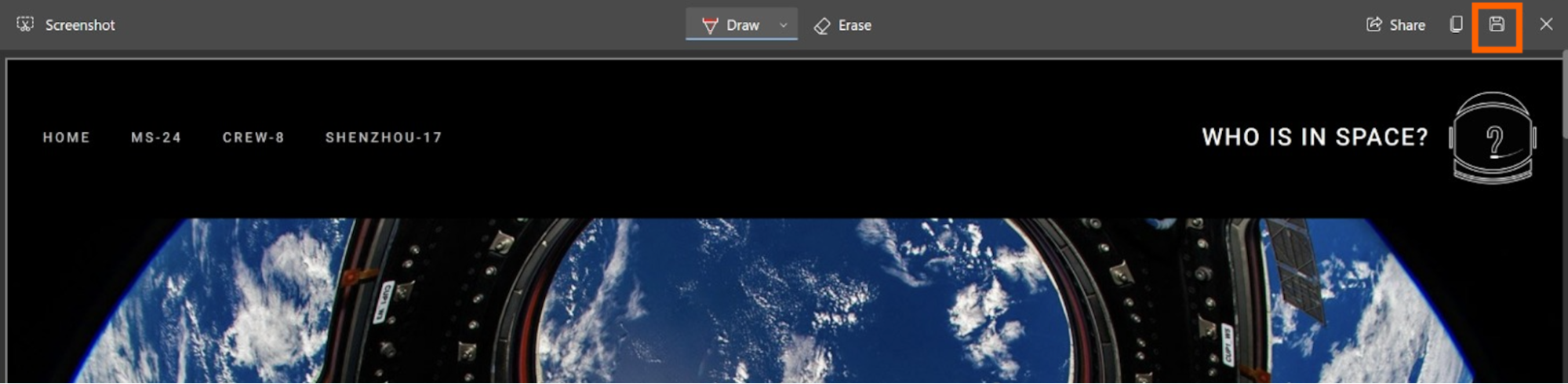
For organizations running mixed browser environments, Firefox's approach reduces training overhead. But Chrome's method works identically in any Chromium-based browser, including Edge and Arc, which covers the majority of enterprise deployments.
When Browser Tools Aren't Enough: Enterprise Considerations
Built-in browser tools handle most documentation needs, but enterprise environments sometimes require more. Consider when you might need dedicated screenshot software:
- Automated capture schedules for compliance monitoring
- Annotation and markup before sharing
- Direct integration with project management tools
- Batch processing of multiple URLs
- Version comparison for change tracking
For these advanced use cases, tools like Screenshotone, Full Page Screen Capture extensions, or enterprise documentation platforms become worth evaluating. But for the 80% of screenshot needs that involve capturing a single page for a report or presentation, browser-native tools eliminate software costs and IT overhead.
The cost consideration extends beyond license fees. Every additional tool requires IT evaluation, security review, deployment, training, and ongoing maintenance. For a capability built into software your team already uses, that overhead disappears.
Security considerations for web-based documentation and compliance
Building Documentation Workflows That Scale
Knowing how to capture full page screenshots is step one. Integrating that capability into efficient workflows determines whether the knowledge actually saves time.
Consider establishing team standards: consistent file naming conventions, designated storage locations, and clear guidelines for when screenshots are required. A screenshot named 'competitor-pricing-acme-2026-01-15.png' stored in a shared drive folder beats 'Screenshot 2026-01-15 at 3.42.17 PM.png' buried in someone's Downloads folder.
For teams doing regular documentation—QA, compliance, competitive intelligence—automation tools can capture screenshots on schedules or triggers. Zapier, Make, and similar platforms can orchestrate screenshot capture as part of larger workflows, though that moves beyond browser-native capabilities into dedicated tooling.
Understanding AI-powered tools reshaping business documentation
Frequently Asked Questions About Full Page Screenshots
Frequently Asked Questions
Do full page screenshots work on password-protected pages?
Yes, as long as you're logged in when you capture. The screenshot tool captures exactly what's visible to you in the browser. For pages requiring authentication, log in first, then use the screenshot command. The tool doesn't bypass any security—it simply captures your current view of the page.
How large are full page screenshot files?
File size depends on page length and content. A typical article page produces a 2-5MB PNG file. Image-heavy pages or very long pages can reach 10-20MB. Chrome saves as PNG by default, which preserves quality but creates larger files than JPEG. For email or chat sharing, you may need to compress or convert.
Can I capture full page screenshots on mobile devices?
Not with built-in browser tools in the same way. iOS and Android have scroll-capture features in their native screenshot tools, but they're less reliable than desktop browser methods. For consistent mobile page documentation, use Chrome's Device Mode on desktop to simulate mobile dimensions, then capture.
Will this work for capturing web applications like Salesforce or HubSpot?
Results vary by application. Single-page applications and complex web apps sometimes don't capture fully because of how they render content. Test with your specific applications. For critical business applications, dedicated screenshot tools with web app support may be worth the investment.
How do I share these screenshots efficiently with my team?
Screenshots save to your Downloads folder as PNG files. From there, drag into Slack, email, or your documentation tool. For frequent sharing, consider setting up a cloud folder that syncs automatically, or use a screenshot tool with built-in sharing links.
Logicity's Take
At Logicity, we build documentation into our development workflow from day one. When we're shipping Next.js applications or configuring n8n automation workflows for clients, full page screenshots become essential for client approvals, QA handoffs, and project archives. We've found that the five minutes spent teaching a client team Chrome's screenshot shortcut often saves hours of back-and-forth about 'which version' or 'what did it look like before.' For our Hyderabad-based clients especially, where teams often span multiple time zones and async communication is the norm, having clear visual documentation eliminates ambiguity. The business lesson here isn't about screenshots specifically—it's about finding the built-in capabilities in tools you already pay for before adding new software to your stack. Chrome's hidden screenshot tool is just one example of valuable features buried in familiar software.
Need Help Implementing This?
Logicity helps businesses streamline their documentation and automation workflows. Whether you need help building efficient processes around existing tools or evaluating when dedicated solutions make sense, our team brings practical experience from shipping real projects. Reach out to discuss your documentation challenges.
Source: The Zapier Blog
Huma Shazia
Senior AI & Tech Writer
اقرأ أيضاً

رأي مغاير: كيف يؤثر اختراق الأمن الداخلي الأميركي على شركاتنا الخاصة؟
في ظل اختراق عقود الأمن الداخلي الأميركي مع شركات خاصة، نناقش تأثير هذا الاختراق على مستقبل الأمن السيبراني. نستعرض الإحصاءات الموثوقة ونناقش كيف يمكن للشركات الخاصة أن تتعامل مع هذا التهديد. استمتع بقراءة هذا التحليل العميق

الإنسان في زمن ما بعد الوجود البشري: نحو نظام للتعايش بين الإنسان والروبوت - Centre for Arab Unity Studies
في هذا المقال، سنناقش كيف يمكن للبشر والروبوتات التعايش في نظام متكامل. سنستعرض التحديات والحلول المحتملة التي تضعها شركات مثل جوجل وأمازون. كما سنلقي نظرة على التوقعات المستقبلية وفقًا لتقرير ماكنزي

إطلاق ناسا لمهمة مأهولة إلى القمر: خطوة تاريخية نحو استكشاف الفضاء
تعتبر المهمة الجديدة خطوة هامة نحو استكشاف الفضاء وتطوير التكنولوجيا. سوف تشمل المهمة إرسال رواد فضاء إلى سطح القمر لconducting تجارب علمية. ستسهم هذه المهمة في تطوير فهمنا للفضاء وتحسين التكنولوجيا المستخدمة في استكشاف الفضاء.