5 Windows 11 security settings to change on every install
Key Takeaways
- Windows 11's default telemetry settings collect extensive data for Microsoft; disable them in Privacy & Security settings
- Core isolation, Memory integrity, and Secure Boot may not be enabled by default on all new installations
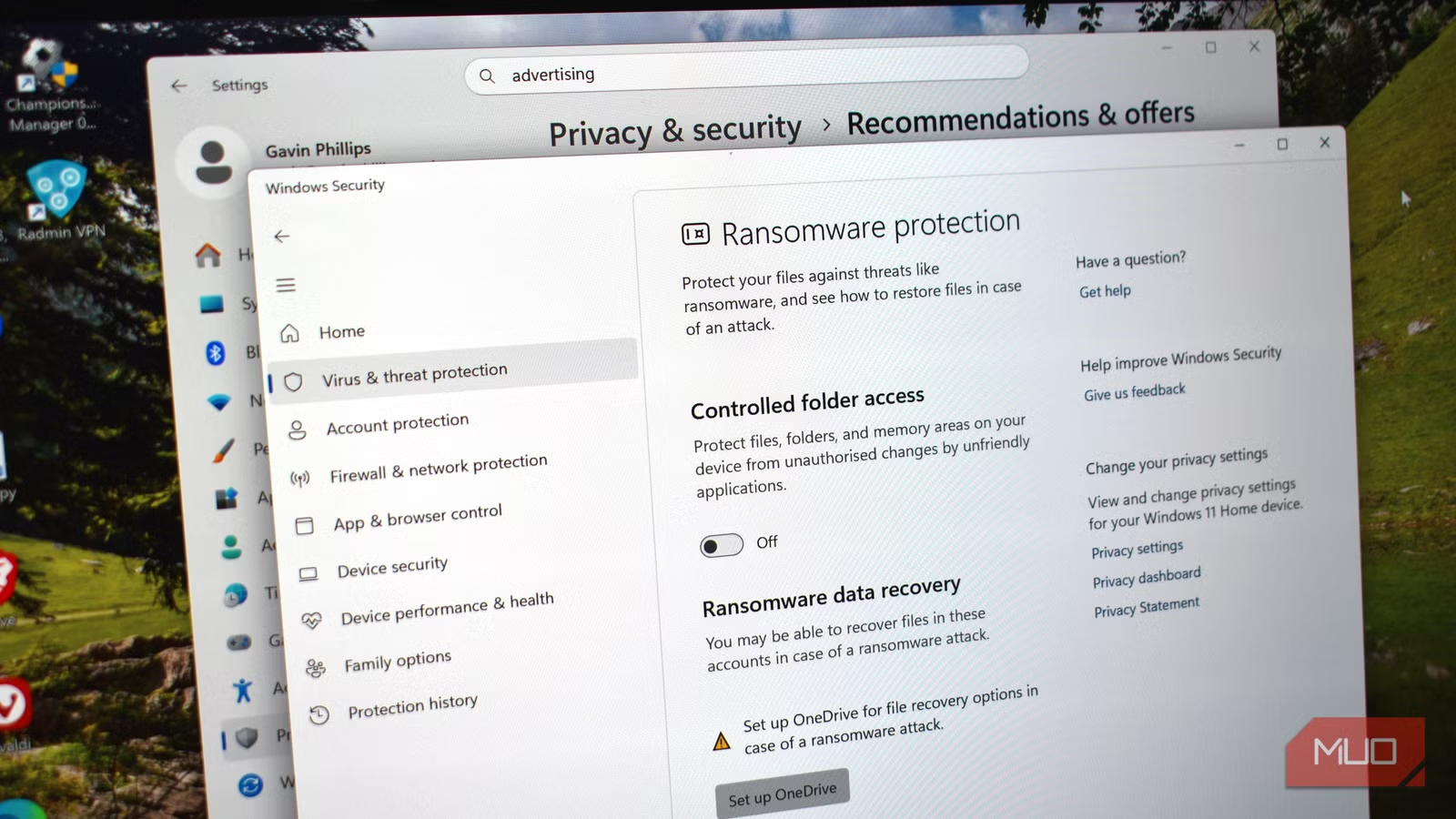
- Controlled Folder Access blocks ransomware but requires manual activation in Windows Security
Windows 11 is arguably Microsoft's most secure operating system to date. Most security experts now agree you can skip third-party antivirus software entirely. But "secure by default" is not the same as "hardened." Microsoft ships the OS configured for ease of use and background data collection, leaving several critical protections turned off. Here are five settings worth changing on every new installation.
Why Microsoft's defaults aren't enough
Out of the box, Windows 11 prioritizes compatibility and telemetry over strict security. Features like Controlled Folder Access sit dormant because enabling them can confuse average users or break poorly designed applications. Power users and anyone handling sensitive data should flip these switches themselves.
With roughly 1.4 billion active Windows 10 and 11 devices worldwide, even small configuration gaps create massive attack surfaces. And since 90% of cyberattacks begin with human error, layered OS-level protections matter.
1. Kill telemetry and advertising tracking
Windows Telemetry feeds data back to Microsoft. It does nothing useful for you. The quickest fix: open Settings > Privacy & Security > Diagnostics & feedback and toggle everything to Off. While you're there, delete your existing diagnostic data.
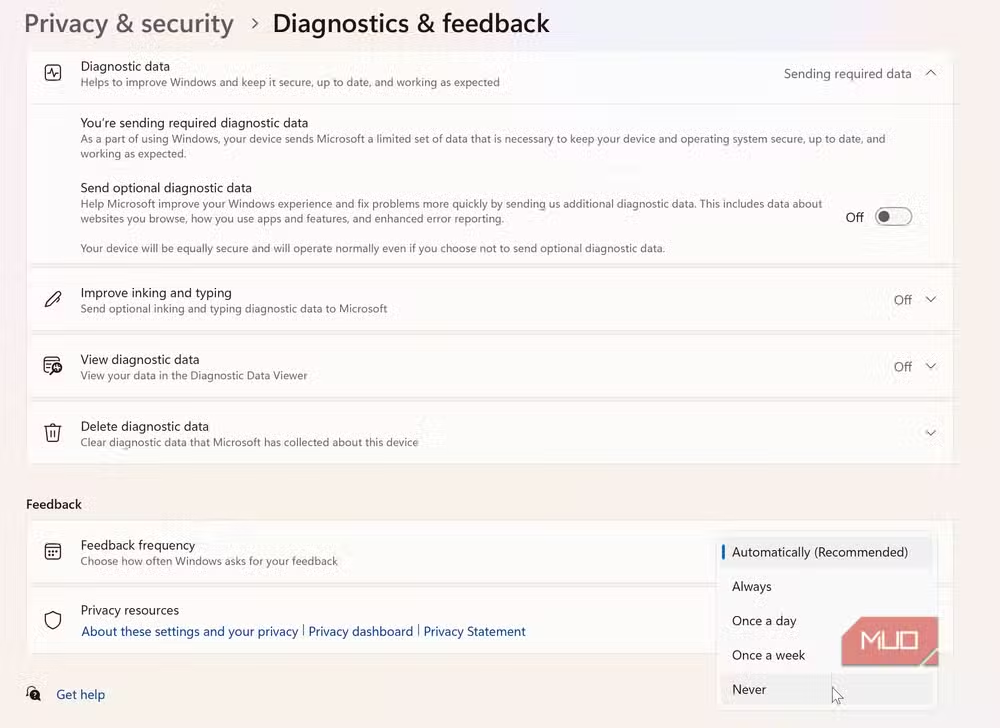
Next, search "advertising" in Settings and disable the advertising ID that tracks your activity across apps. This cuts down telemetry, but it won't eliminate every tracking hook baked into the OS.
For deeper cuts, tools like Win11Debloat or O&O ShutUp10++ strip out bloatware and promotional elements. A warning: Reddit's r/Windows11 and r/Privacy communities are split on aggressive debloating scripts. They can break Windows Update or cause stability issues when Microsoft pushes feature drops. Use them carefully.
2. Enable Core Isolation and Memory Integrity
Navigate to Windows Security > Device Security and check Core Isolation. This feature runs your kernel in a virtualized environment, shielding it from malicious code. Memory Integrity, a subset of Core Isolation, verifies the integrity of code running in high-security processes.
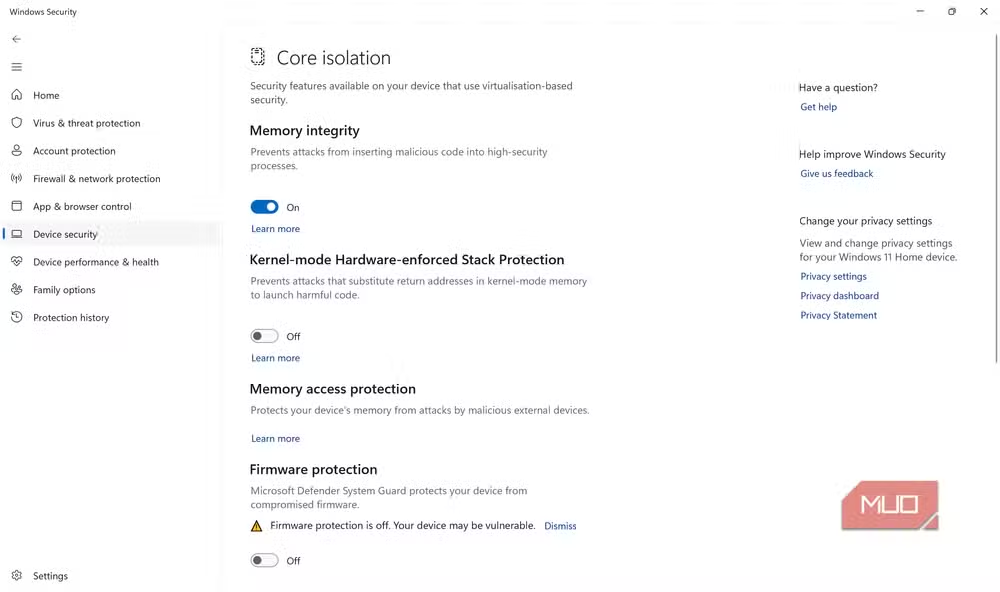
Both should be on. They often aren't. Phillips discovered that security features he assumed were active by default were switched off on his own machine. Don't assume.
3. Verify Secure Boot is active
Secure Boot ensures only signed, trusted code runs during startup. It blocks bootkits and rootkits that try to load before Windows does. This was mandatory for the Windows 10 to 11 upgrade, so most upgraded machines have it enabled.
Fresh installations are another story. Newer Windows 11 builds may ship with Secure Boot off. Check Device Security and toggle it on if necessary.
4. Confirm TPM is working
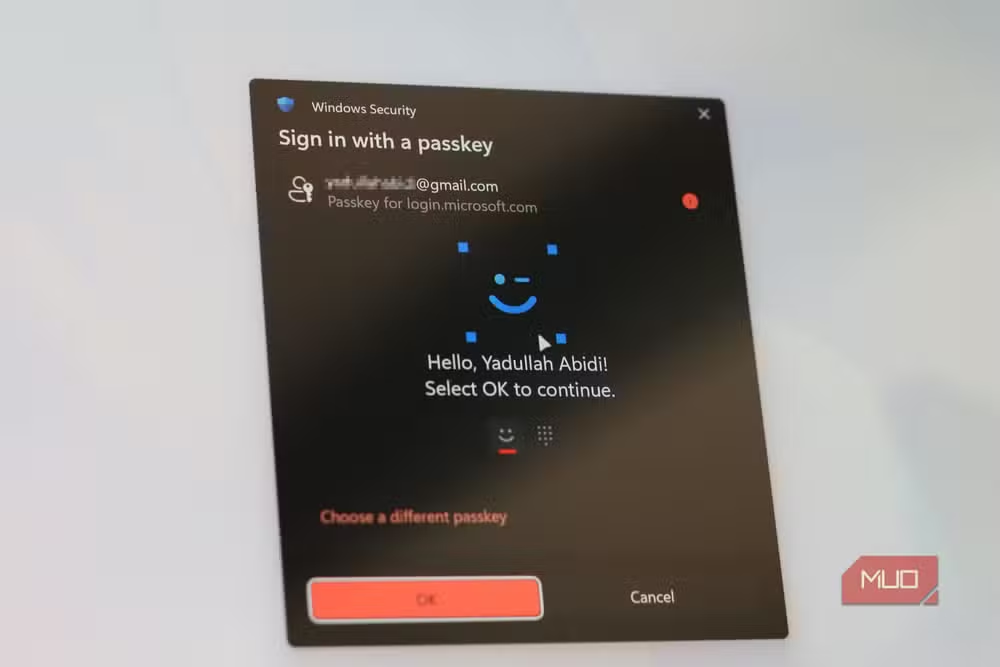
The Trusted Platform Module handles hardware-level cryptographic operations. It's required for Windows 11 and enabled by default on almost all compatible devices. Still, it's worth confirming under Device Security. TPM underpins BitLocker encryption, Windows Hello, and other security features.
5. Turn on Controlled Folder Access
Hidden in Windows Security > Ransomware Protection is Controlled Folder Access. It locks down specific folders, blocking unauthorized changes. Its primary job is stopping ransomware from encrypting your files, but it also prevents accidental or malicious modifications from other sources.
The catch: it can be fiddly. Legitimate apps sometimes get blocked when they try to write to protected folders. You'll need to whitelist trusted programs manually. For anyone storing important data, that trade-off is worth it.
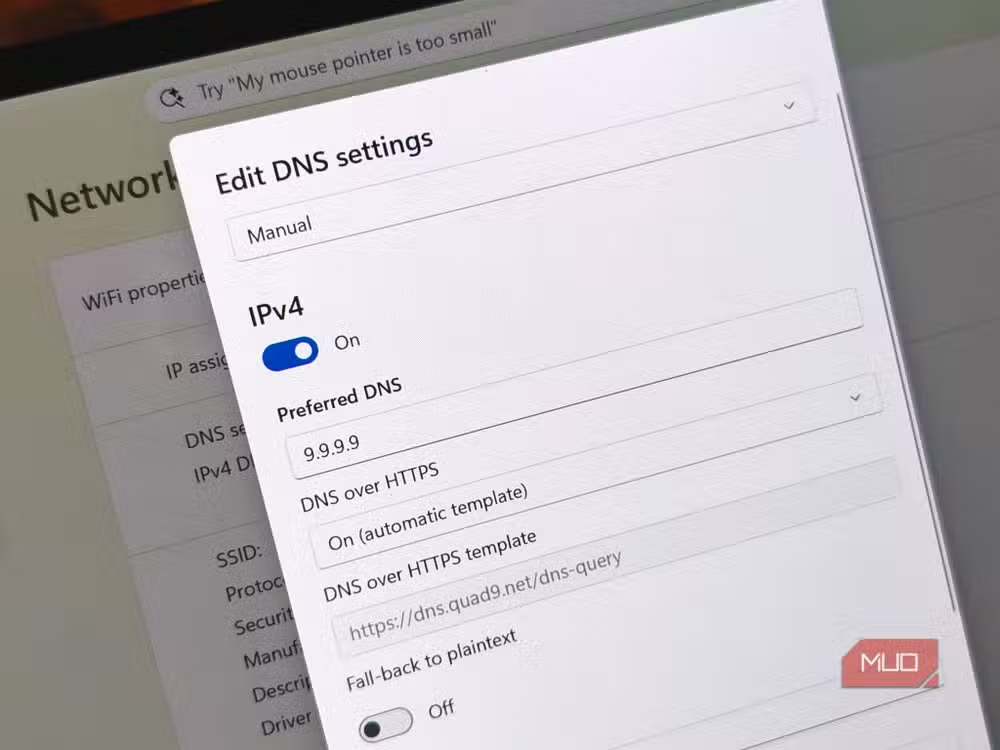
Bonus: Configure DNS over HTTPS
While not in the original list, enabling DNS over HTTPS (DoH) in Network settings encrypts your DNS queries. This prevents ISPs and network attackers from snooping on which sites you visit. Use a privacy-focused resolver like Quad9 or Cloudflare.
Should you use debloating scripts?
Tools like Win11Debloat and O&O ShutUp10++ go further than the Settings app allows. They can disable telemetry at a deeper level and strip out promotional apps. Power users swear by them.
The risk is real, though. Aggressive scripts can break Windows Update or cause instability after feature updates. If you rely on your machine for work, test these tools on a secondary device first. Or stick to the manual toggles above.
Upgrading your PC's security? A faster SSD improves both performance and BitLocker encryption speeds.
The five-minute hardening checklist
- Settings > Privacy & Security > Diagnostics & feedback: toggle all to Off, delete diagnostic data
- Settings > Privacy & Security > General: disable advertising ID
- Windows Security > Device Security: enable Core Isolation and Memory Integrity
- Windows Security > Device Security: confirm Secure Boot and TPM are active
- Windows Security > Ransomware Protection: enable Controlled Folder Access
Five minutes. That's all it takes to close the gaps Microsoft leaves open. The OS handles most threats automatically. These settings handle the rest.
Logicity's Take
Microsoft's "secure by default" claim is marketing, not reality. The company optimizes for telemetry revenue and support-ticket reduction, not maximum user protection. Controlled Folder Access alone would stop most ransomware attacks, yet it ships disabled. Until Microsoft changes its defaults, treating every fresh installation as a hardening project is the only rational approach.
Frequently Asked Questions
Does Windows 11 need third-party antivirus software?
Most security experts say no. Windows Security (formerly Defender) now provides comprehensive protection against malware, ransomware, and phishing. Third-party tools add marginal benefit for typical users.
Will disabling telemetry break Windows Update?
Using the Settings app toggles will not break updates. Aggressive third-party debloating scripts can interfere with update mechanisms. Stick to manual settings changes for stability.
What is Controlled Folder Access and why is it off by default?
It's a ransomware protection feature that blocks unauthorized apps from modifying protected folders. Microsoft disables it by default because it can block legitimate apps, requiring users to manually whitelist them.
How do I check if Secure Boot is enabled?
Open Windows Security > Device Security. Secure Boot status appears under the security features list. If it shows as off, you'll need to enable it in your UEFI/BIOS settings.
Is O&O ShutUp10++ safe to use on Windows 11?
It's widely used and generally safe, but aggressive settings can cause stability issues after Windows feature updates. Apply changes conservatively and create a restore point first.
Need Help Implementing This?
If you're managing Windows 11 deployments across an organization, Logicity covers enterprise security tooling and Group Policy configurations. Subscribe to our newsletter for IT-focused guides, or contact us for coverage requests.
Source: MakeUseOf
Manaal Khan
Tech & Innovation Writer
اقرأ أيضاً

رأي مغاير: كيف يؤثر اختراق الأمن الداخلي الأميركي على شركاتنا الخاصة؟
في ظل اختراق عقود الأمن الداخلي الأميركي مع شركات خاصة، نناقش تأثير هذا الاختراق على مستقبل الأمن السيبراني. نستعرض الإحصاءات الموثوقة ونناقش كيف يمكن للشركات الخاصة أن تتعامل مع هذا التهديد. استمتع بقراءة هذا التحليل العميق

الإنسان في زمن ما بعد الوجود البشري: نحو نظام للتعايش بين الإنسان والروبوت - Centre for Arab Unity Studies
في هذا المقال، سنناقش كيف يمكن للبشر والروبوتات التعايش في نظام متكامل. سنستعرض التحديات والحلول المحتملة التي تضعها شركات مثل جوجل وأمازون. كما سنلقي نظرة على التوقعات المستقبلية وفقًا لتقرير ماكنزي

إطلاق ناسا لمهمة مأهولة إلى القمر: خطوة تاريخية نحو استكشاف الفضاء
تعتبر المهمة الجديدة خطوة هامة نحو استكشاف الفضاء وتطوير التكنولوجيا. سوف تشمل المهمة إرسال رواد فضاء إلى سطح القمر لconducting تجارب علمية. ستسهم هذه المهمة في تطوير فهمنا للفضاء وتحسين التكنولوجيا المستخدمة في استكشاف الفضاء.