5 Ways to Add More Drives to Your NAS Without Replacing It
Key Takeaways
- USB enclosures are the cheapest option but come with bandwidth limits and reliability concerns
- 5.25-inch drive bay adapters work well for DIY NAS builds with spare optical bays
- Upgrading to higher-capacity drives is often the cleanest solution for long-term growth
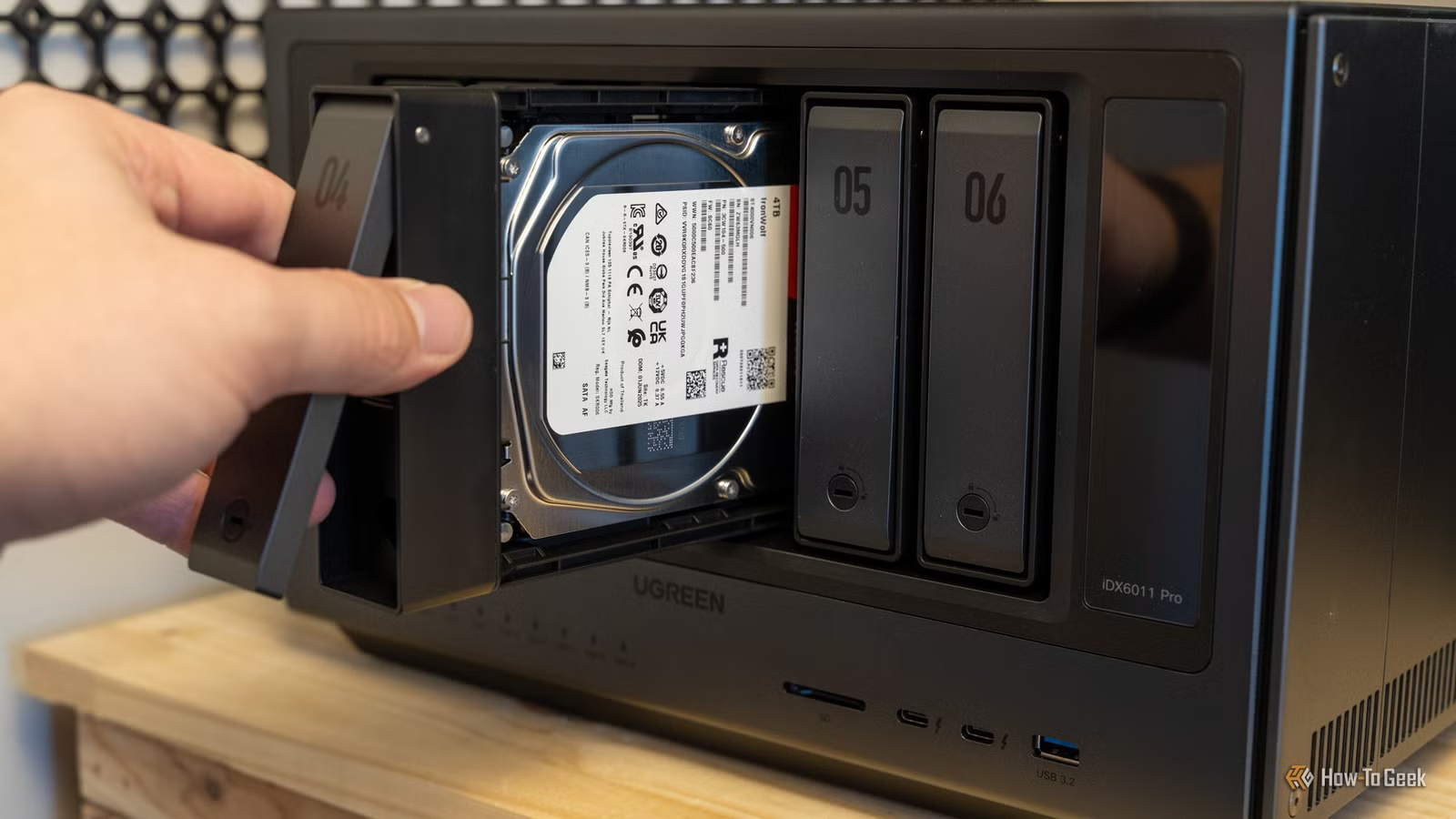
You bought a NAS with what seemed like plenty of drive bays. Now they're all full, and you're staring down another TB of photos, video files, or backups that need a home. The good news: you don't necessarily need to buy a new NAS. The bad news: your options range from 'good enough' to 'technically works but you'll hate it.'
Here are five ways to expand your NAS storage when you've run out of bays.
1. USB External Drive Enclosures
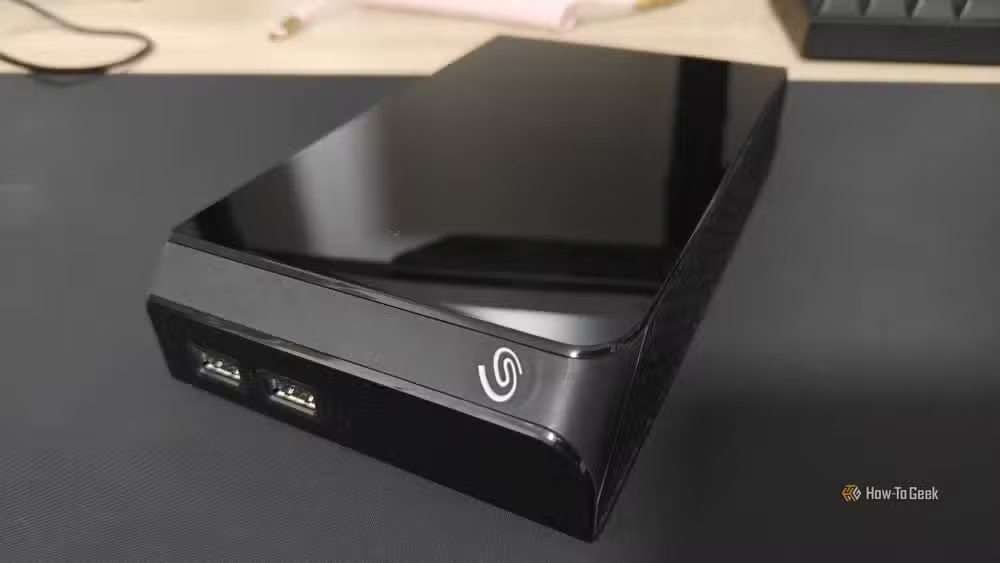
The fastest path to more storage is plugging in an external USB drive enclosure. Most NAS devices have at least 5Gbps USB ports, which is enough bandwidth for multiple HDDs. Single-drive enclosures cost around $20 to $30, and multi-bay options run higher.
This approach is cheap and simple. It's also the least reliable option.
- Bandwidth bottlenecks appear quickly with multi-drive enclosures
- USB 2.0 ports add significant latency
- Random disconnections happen more often than you'd like
- Sleep and wake cycles can cause detection problems
- Most NAS systems won't let you add USB drives to RAID or ZFS pools
Even when your NAS does allow USB drives in storage pools, avoid it. USB storage is less reliable than internal drives, and one flaky connection can corrupt your entire array.
2. 5.25-Inch Drive Bay Adapters
If you built your NAS from a standard PC case, you might have unused 5.25-inch optical drive bays. These adapters let you mount 2.5-inch or 3.5-inch drives in that space, connecting directly to your motherboard's SATA ports.
This is a solid option for DIY NAS builders. The drives connect via SATA like any internal drive, so you get full speed and full compatibility with your storage pools. The main limitation is physical: you need free 5.25-inch bays and available SATA ports on your motherboard.
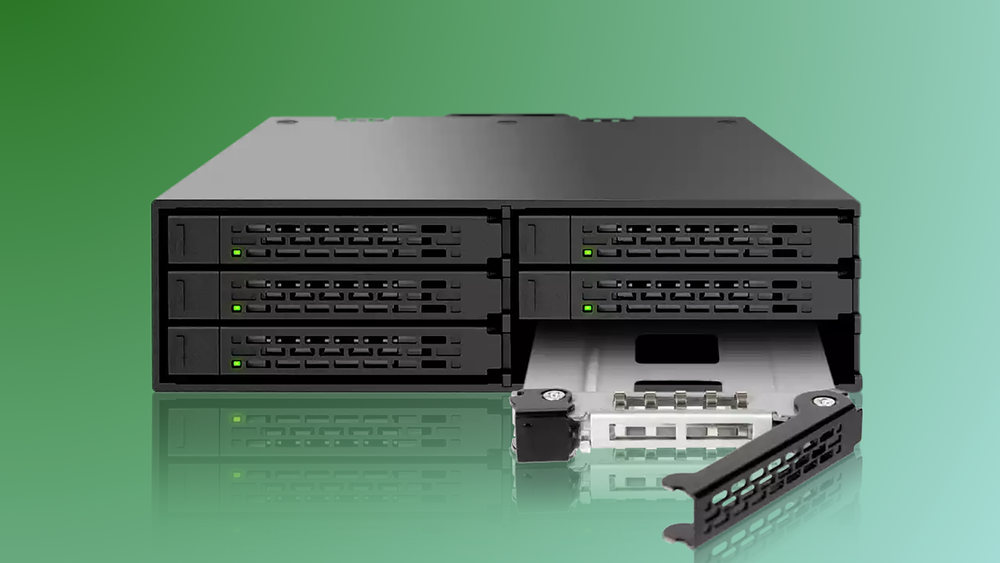
Most adapters accommodate two to four 2.5-inch drives or one to two 3.5-inch drives per bay. If you have two free optical bays, you could add four to eight drives this way.
3. Upgrade to Higher-Capacity Drives
Sometimes the cleanest solution isn't adding more drives. It's replacing the ones you have with bigger ones.
If your NAS runs 4TB drives and you swap them for 18TB drives, you've multiplied your capacity by 4.5x without adding any complexity. Your RAID configuration stays the same. Your power consumption stays roughly the same. Your noise level stays the same.
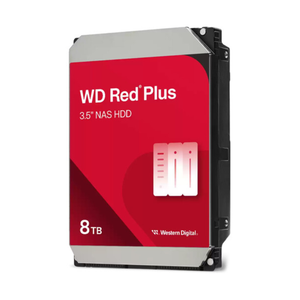
The downside is cost. High-capacity NAS drives aren't cheap, and you'll likely need to replace multiple drives to maintain redundancy. But this approach scales well and avoids the reliability concerns of external solutions.
Most NAS operating systems let you replace drives one at a time, rebuilding the array after each swap. Check your specific software's documentation before starting.
4. Direct Attached Storage (DAS)
A DAS unit is essentially a drive enclosure that connects via faster interfaces like USB 3.2 Gen 2, Thunderbolt, or even direct SATA/SAS connections. Unlike cheap USB enclosures, DAS units are designed for this exact use case.
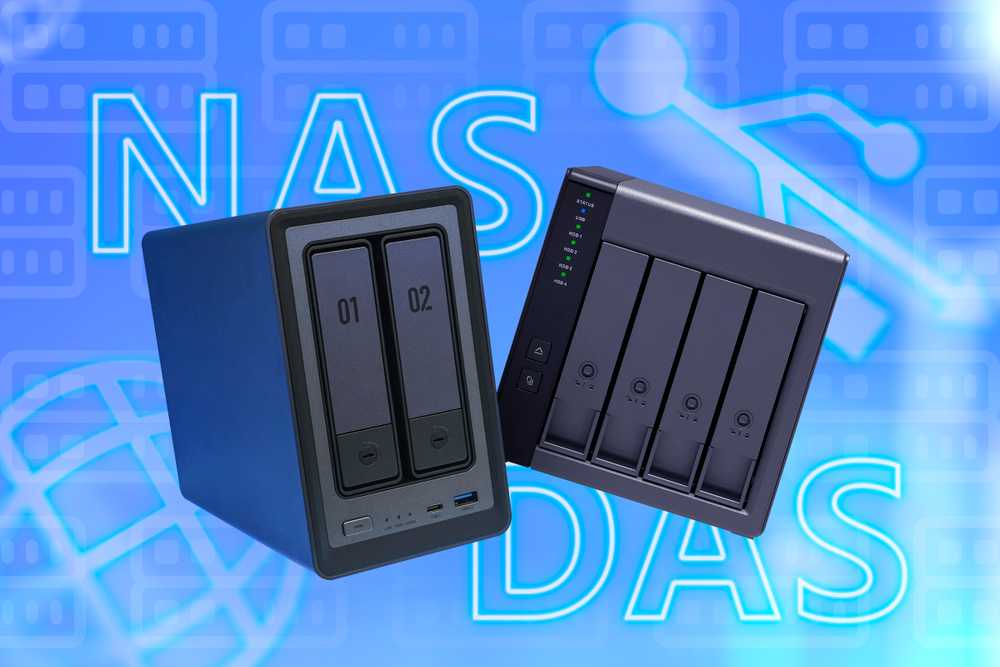
DAS devices range from simple multi-bay enclosures to units with their own hardware RAID controllers. The latter can present multiple drives as a single volume to your NAS, simplifying management.
This is the middle ground between cheap USB enclosures and buying a second NAS. You get better reliability and performance than USB, but you still have external hardware to manage and cables to deal with.
5. Add a Second NAS
Sometimes the right answer is the obvious one. If your storage needs have genuinely outgrown your NAS, a second unit might make more sense than trying to extend the first one.
Two NAS units give you options: separate them by function (one for media, one for backups), use one as a replication target for the other, or pool them together if your software supports it. Synology and QNAP both offer features for managing multiple NAS devices as a unified system.
The upfront cost is higher, but you also get redundancy. If one NAS fails, the other keeps running.
✅ Pros
- • USB enclosures are cheap and require no technical setup
- • Drive bay adapters give you internal-drive reliability on DIY builds
- • Capacity upgrades maintain your existing setup with no added complexity
- • DAS units balance cost and reliability for moderate expansion
❌ Cons
- • USB storage is unreliable for RAID or ZFS pools
- • High-capacity drives have significant upfront cost
- • External enclosures add cable clutter and potential failure points
- • Some options require spare ports or bays you may not have
Which Option Should You Pick?
For temporary or non-critical storage, USB enclosures work fine. Use them for media libraries or archives you can rebuild if something fails.
For DIY NAS builds with spare bays, drive adapters are the best value. You get internal-drive reliability without buying new hardware beyond the adapter itself.
For long-term growth, upgrading drive capacity or adding a DAS unit makes the most sense. Both options maintain the reliability you expect from a NAS.
If your needs have truly outgrown a single NAS, don't fight it. A second unit costs more upfront but gives you room to grow without compromise.
Logicity's Take
Another practical comparison for tech infrastructure decisions
Frequently Asked Questions
Can I add USB drives to my NAS RAID array?
Most NAS systems don't allow this, and even when they do, it's risky. USB connections are less reliable than internal SATA, and a disconnection during a write operation can corrupt your entire array.
How much does it cost to upgrade NAS drive capacity?
NAS-grade drives like the WD Red Plus or Seagate IronWolf run roughly $15 to $20 per TB. A 4-drive upgrade from 4TB to 18TB drives would cost approximately $1,000 to $1,400.
What's the difference between DAS and NAS?
A NAS connects to your network and serves files to multiple devices. A DAS connects directly to one computer or NAS via USB, Thunderbolt, or SATA. DAS is simpler and often faster, but it only serves one host.
Can I replace NAS drives one at a time?
Yes, most NAS operating systems support this. Replace one drive, let the array rebuild, then replace the next. The process takes longer but keeps your data safe during the upgrade.
Is it better to buy a bigger NAS or add external storage?
For critical data, a bigger NAS or a second NAS is more reliable. External storage works for archives and media you can afford to lose or rebuild.
Need Help Implementing This?
Source: How-To Geek
Manaal Khan
Tech & Innovation Writer
اقرأ أيضاً

رأي مغاير: كيف يؤثر اختراق الأمن الداخلي الأميركي على شركاتنا الخاصة؟
في ظل اختراق عقود الأمن الداخلي الأميركي مع شركات خاصة، نناقش تأثير هذا الاختراق على مستقبل الأمن السيبراني. نستعرض الإحصاءات الموثوقة ونناقش كيف يمكن للشركات الخاصة أن تتعامل مع هذا التهديد. استمتع بقراءة هذا التحليل العميق

الإنسان في زمن ما بعد الوجود البشري: نحو نظام للتعايش بين الإنسان والروبوت - Centre for Arab Unity Studies
في هذا المقال، سنناقش كيف يمكن للبشر والروبوتات التعايش في نظام متكامل. سنستعرض التحديات والحلول المحتملة التي تضعها شركات مثل جوجل وأمازون. كما سنلقي نظرة على التوقعات المستقبلية وفقًا لتقرير ماكنزي

إطلاق ناسا لمهمة مأهولة إلى القمر: خطوة تاريخية نحو استكشاف الفضاء
تعتبر المهمة الجديدة خطوة هامة نحو استكشاف الفضاء وتطوير التكنولوجيا. سوف تشمل المهمة إرسال رواد فضاء إلى سطح القمر لconducting تجارب علمية. ستسهم هذه المهمة في تطوير فهمنا للفضاء وتحسين التكنولوجيا المستخدمة في استكشاف الفضاء.