5 Home Assistant Features You Should Actually Use
Key Takeaways
- Labels let you group devices across rooms and types, making automations far more flexible
- Helpers simplify complex tasks like calibrating inaccurate temperature sensors
- Actionable notifications turn your phone into a remote control for automations
Home Assistant has become the platform of choice for people who want real control over their smart homes. But most users barely scratch the surface. They set up a few lights, maybe a thermostat, and call it a day.
The platform hides some genuinely useful tools in plain sight. Labels, helpers, actionable notifications, and webhooks aren't flashy. They don't get much attention in the setup guides. But they can turn a clunky collection of devices into something that actually feels smart.
Labels: Organize Everything, Automate Anything
You can assign labels to almost anything in Home Assistant. Devices, entities, areas, automations. It's a simple tagging system that lets you group things regardless of what they do or where they sit.
This sounds like basic housekeeping. It's not. Labels make automations dramatically more flexible.
Consider a common scenario: you want to turn off all lights in the house at bedtime. The typical approach is to list every light in your automation. Add a new light? Edit the automation. Move a light to a different room? Edit again.
With labels, you build the automation once. It targets everything with the "bedroom lights" label. Add a new light, slap the label on it, done. No code changes.
You can also use labels for exclusions. Want to turn off every light except your hallway nightlight? Give that one a "keep on" label and exclude it from your bedtime routine.
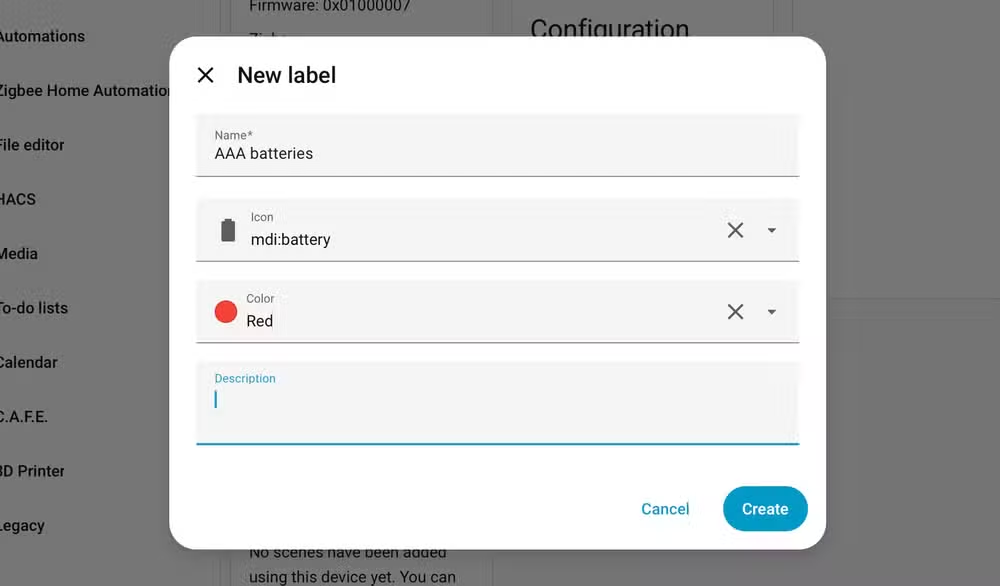
Even mundane organization benefits. Label devices by battery type (AAA, CR2032, rechargeable) and you'll never have to open every device's settings page to figure out what to buy.
To add labels, edit any device or entity. Or use "Enter selection mode" in the Devices or Automations lists, check multiple items, and click "Add label" at the top.
Helpers: Fix What's Broken
Helpers are Home Assistant's term for tools that simplify common tasks. They live under Settings, then Devices & Services, then the Helpers tab. Click "+ Create helper" to see what's available.
The most practical use case: fixing inaccurate sensors. Many cheap temperature sensors report readings that are off by a degree or two. Annoying when your thermostat thinks it's 72°F but you're sweating at 75°F.
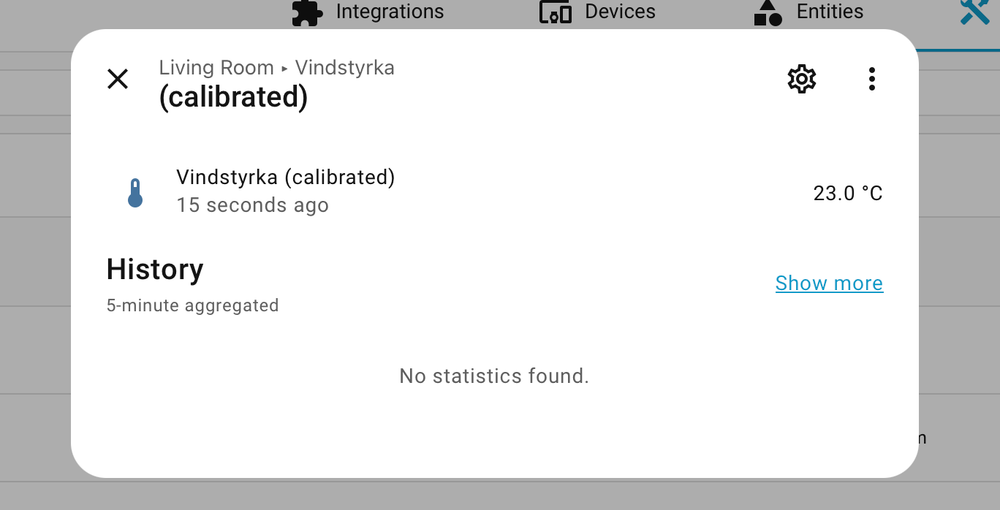
The calibration helper lets you create a new entity that applies an offset to the original sensor. Your automations use the corrected reading. The original sensor stays unchanged. If you ever replace the hardware, just update the helper.
Other helpers track toggle states, timers, counters, and input values. They're building blocks for complex automations that would otherwise require custom code.
Actionable Notifications: Your Phone Becomes a Remote
Standard Home Assistant notifications are one-way. Your phone buzzes, you read the message, you open the app if you want to do something about it.
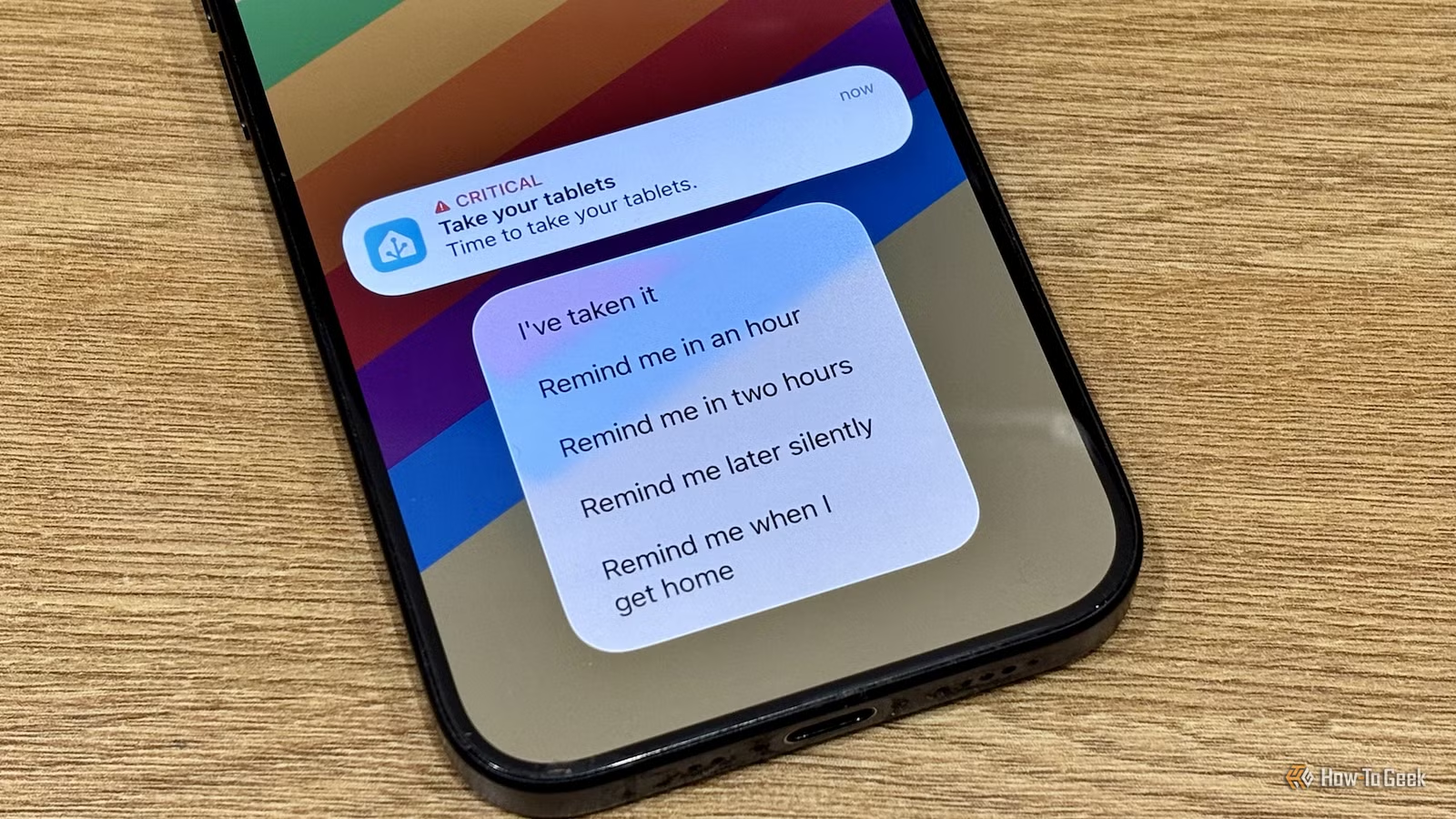
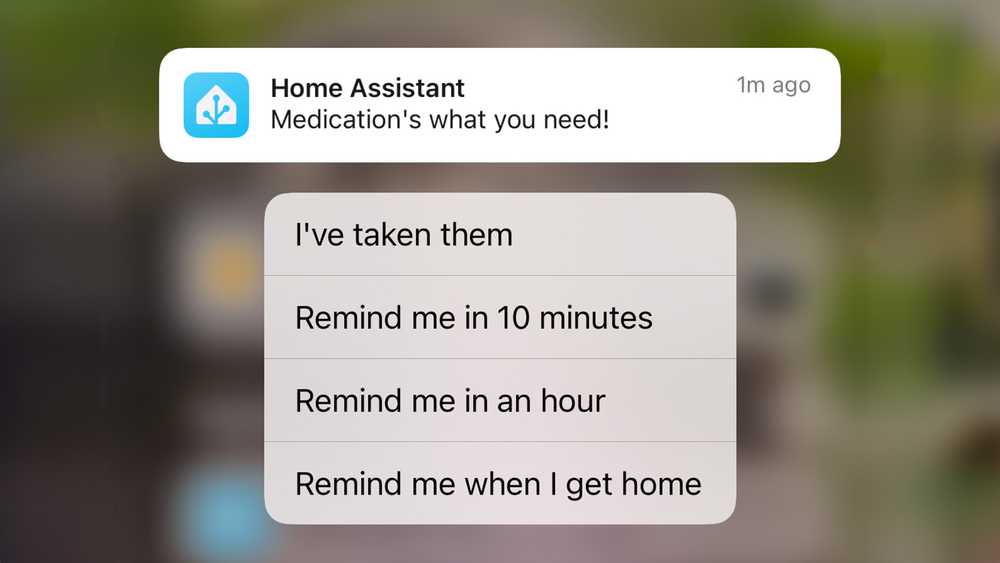
Actionable notifications add buttons directly to the notification. Tap a button, trigger an automation. No app required.
The classic example is a doorbell. Motion detected at the front door. Notification pops up with "Turn on porch light" and "Ignore" buttons. Tap once, lights come on. You never leave the lock screen.
Medication reminders work the same way. "Did you take your meds?" with "Yes" and "Remind me in 30 minutes" options. The automation handles the follow-up logic.
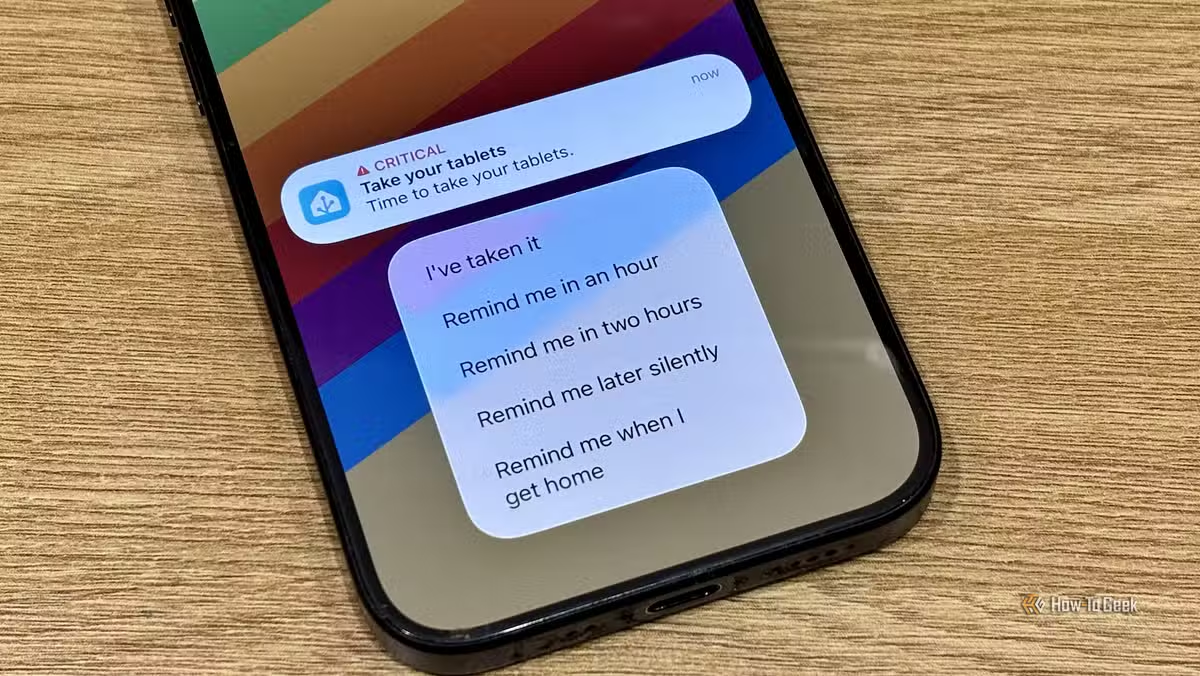
Setup requires defining the actions in your notification service configuration, then referencing them in your automations. It's more involved than a basic notification but not complicated once you've done it once.
Webhooks: Connect Anything to Home Assistant
Webhooks let external services trigger Home Assistant automations. Any app or service that can send an HTTP request can talk to your smart home.
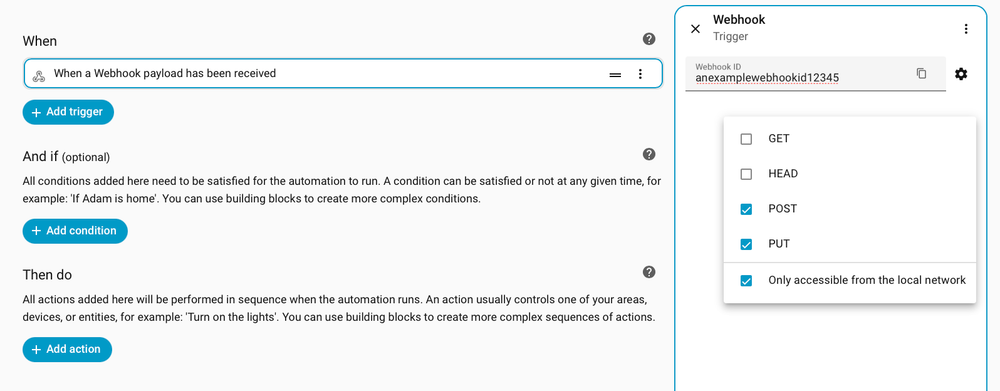
The setup is straightforward. Create an automation with a webhook trigger. Home Assistant gives you a URL. Point your external service at that URL. When the service hits the endpoint, your automation runs.
Practical uses: trigger scenes when you log off your work computer, flash lights when your favorite team scores, turn on the coffee maker when your alarm app fires. If it can send a webhook, it can control your home.
Sensor Calibration: Trust Your Data
This one overlaps with helpers but deserves its own mention. Home Assistant can create calibrated versions of any sensor.
The process works for temperature, humidity, light levels, anything with a numeric reading. Compare your sensor to a known-good reference. Note the difference. Create a calibration helper that adds or subtracts the offset.
Your automations then use the calibrated entity. When the sensor drifts or you replace it, update the helper. Everything downstream keeps working.
This matters more than it sounds. Climate automations based on bad data waste energy and make your home uncomfortable. A thermostat that thinks it's cooler than it is will run the AC too long. Fix the sensor, fix the problem.
Getting Started
None of these features require advanced technical knowledge. Labels and helpers are built into the standard UI. Actionable notifications need some YAML but follow well-documented patterns. Webhooks require external services that support them, but most modern apps do.
Pick one. Labels are the easiest place to start. Spend 20 minutes organizing your devices. Then build one automation that uses a label instead of listing specific entities. You'll immediately see why this matters.
Logicity's Take
Frequently Asked Questions
Do I need to know how to code to use Home Assistant labels?
No. Labels are managed entirely through the Home Assistant UI. You can add, remove, and organize labels without touching any configuration files or writing YAML.
Can Home Assistant webhooks work with IFTTT or Zapier?
Yes. Both IFTTT and Zapier can send HTTP requests to webhook URLs. You can use them to trigger Home Assistant automations from hundreds of external services.
How accurate are cheap smart home temperature sensors?
Inexpensive sensors are often off by 1-3 degrees Fahrenheit. Home Assistant's calibration helpers let you correct these readings without replacing hardware.
Do actionable notifications work on both iPhone and Android?
Yes. The Home Assistant Companion app supports actionable notifications on both platforms, though the exact setup steps differ slightly.
Are helpers the same as custom entities?
Helpers create entities, but they're simpler than building custom entities from scratch. They're pre-built tools for common tasks like input toggles, timers, and sensor calibration.
Need Help Implementing This?
Source: How-To Geek
Huma Shazia
Senior AI & Tech Writer
اقرأ أيضاً

رأي مغاير: كيف يؤثر اختراق الأمن الداخلي الأميركي على شركاتنا الخاصة؟
في ظل اختراق عقود الأمن الداخلي الأميركي مع شركات خاصة، نناقش تأثير هذا الاختراق على مستقبل الأمن السيبراني. نستعرض الإحصاءات الموثوقة ونناقش كيف يمكن للشركات الخاصة أن تتعامل مع هذا التهديد. استمتع بقراءة هذا التحليل العميق

الإنسان في زمن ما بعد الوجود البشري: نحو نظام للتعايش بين الإنسان والروبوت - Centre for Arab Unity Studies
في هذا المقال، سنناقش كيف يمكن للبشر والروبوتات التعايش في نظام متكامل. سنستعرض التحديات والحلول المحتملة التي تضعها شركات مثل جوجل وأمازون. كما سنلقي نظرة على التوقعات المستقبلية وفقًا لتقرير ماكنزي

إطلاق ناسا لمهمة مأهولة إلى القمر: خطوة تاريخية نحو استكشاف الفضاء
تعتبر المهمة الجديدة خطوة هامة نحو استكشاف الفضاء وتطوير التكنولوجيا. سوف تشمل المهمة إرسال رواد فضاء إلى سطح القمر لconducting تجارب علمية. ستسهم هذه المهمة في تطوير فهمنا للفضاء وتحسين التكنولوجيا المستخدمة في استكشاف الفضاء.