5 Free Wi-Fi Tweaks That Beat Buying a New Router
Key Takeaways
- Switching to public DNS providers like Cloudflare (1.1.1.1) or Google (8.8.8.8) speeds up website loading
- Router placement and orientation affects signal strength more than most people realize
- Software adjustments cost nothing and often outperform hardware upgrades
The router upgrade myth
Buffering screens, dropped video calls, smart home glitches, and downloads that make new devices feel ancient. The default advice for years has been simple: buy a new router. But performance does not depend on purchase price.
A few software tweaks and small physical adjustments can recover significant speed and stability. None of them cost anything. Here are the five that actually work.
1. Switch to a faster DNS provider
Your Domain Name System is basically a phone book for the internet. When you type a website address, your device needs to translate that human-readable name into a numerical IP address. Your ISP handles this translation by default, but their servers often run slow, especially during peak hours.
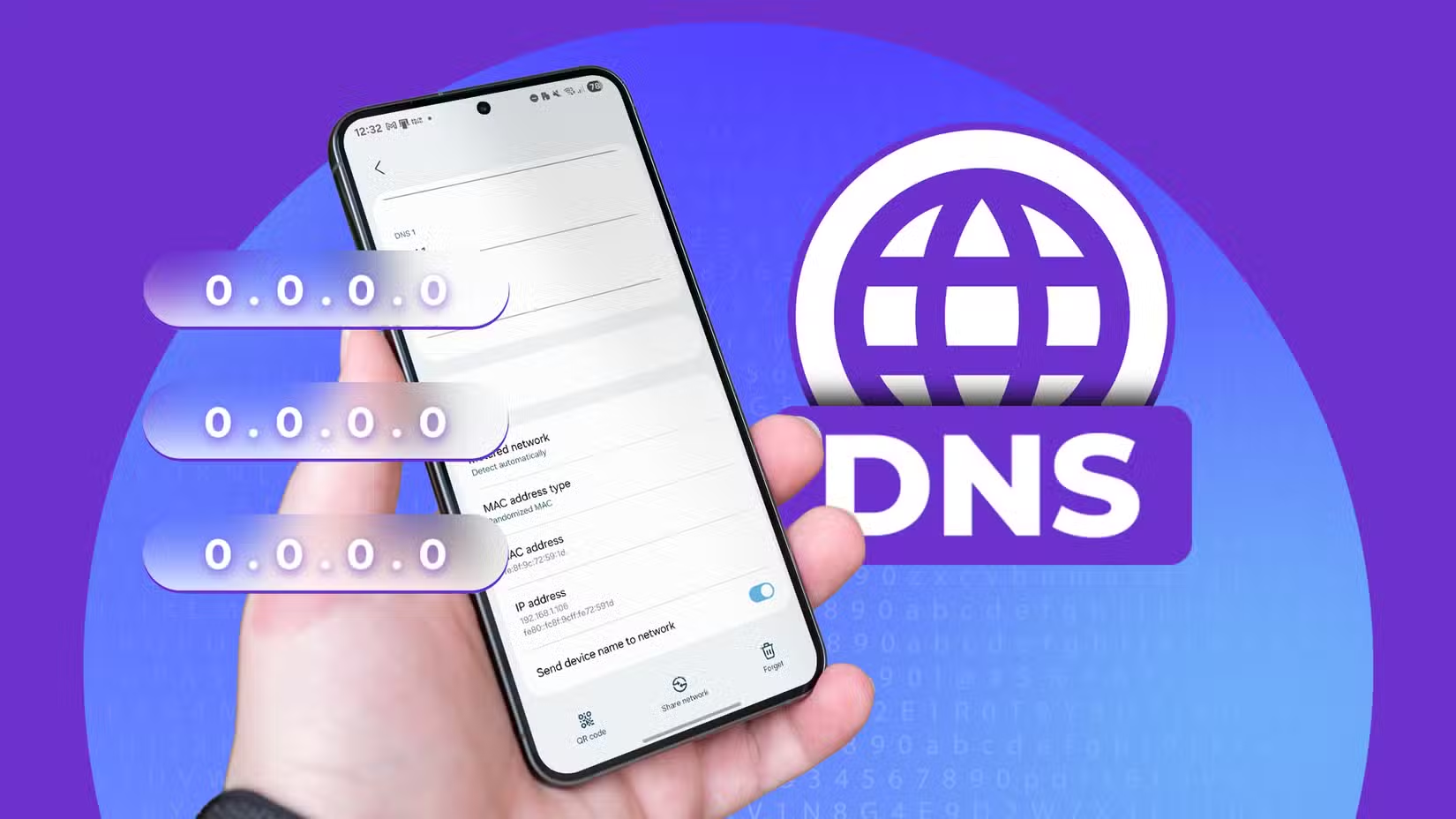
Changing your router's DNS settings to a public provider bypasses this bottleneck. The two most popular options are Google's Public DNS (8.8.8.8) and Cloudflare (1.1.1.1). This won't change your raw download speed, but it makes the initial connection setup faster. Pages feel snappier because the lookup happens almost instantly.
To make the switch, log into your router's admin panel (usually at 192.168.1.1 or 192.168.0.1), find the DNS settings under your network or WAN configuration, and enter the new addresses manually.
2. Reposition your router
Physical placement matters more than most people realize. Routers hidden in closets, tucked behind TVs, or shoved in corners fight against physics. Wi-Fi signals weaken as they pass through walls, floors, and furniture.
The ideal spot is central to your home, elevated off the floor, and away from metal objects and appliances. Microwaves and cordless phones operate on frequencies that interfere with the 2.4 GHz band. Even a fish tank can block signals.
3. Choose the right Wi-Fi band
Most modern routers broadcast on two frequencies: 2.4 GHz and 5 GHz. The 5 GHz band delivers faster speeds but loses signal strength quickly over distance and through walls. The 2.4 GHz band travels farther but handles less data and faces more interference from other devices.
For devices close to your router that need maximum throughput, like streaming 4K video, connect them to the 5 GHz network. For devices farther away or that move around the house, stick with 2.4 GHz.
4. Update your router firmware
Router manufacturers release firmware updates that fix bugs, patch security holes, and sometimes improve performance. Many routers never get updated after initial setup.
Log into your router's admin panel and look for a firmware or software update section. Some routers check automatically; others require you to download the update file from the manufacturer's website. This takes five minutes and can resolve issues you didn't know existed.
5. Audit connected devices
Every device on your network competes for bandwidth. Old tablets, smart plugs, security cameras, and forgotten guest devices all consume resources. Some run background updates or stream data constantly.
Check your router's connected devices list and disconnect anything you don't recognize or no longer use. Change your Wi-Fi password if you haven't in years. This clears out freeloaders and forces a fresh start.
More free fixes for common tech frustrations
When you actually need new hardware
These tweaks work best on routers from the last five to seven years. If your router predates Wi-Fi 5 (802.11ac), or if you've added dozens of smart home devices since you bought it, hardware limitations become real. But try the free fixes first. You might save yourself a few hundred dollars.
Logicity's Take
Frequently Asked Questions
Does changing DNS really make a difference?
Yes, but not to raw download speeds. DNS affects how quickly your device finds websites. A faster DNS provider reduces the initial delay before data starts flowing, making browsing feel snappier.
Should I use 2.4 GHz or 5 GHz Wi-Fi?
Use 5 GHz for devices close to your router that need speed (streaming, gaming). Use 2.4 GHz for devices farther away or that move around the house. The 5 GHz signal doesn't travel as far.
How often should I update router firmware?
Check every few months. Updates fix security vulnerabilities and can improve performance. Many routers go years without updates because owners forget to check.
Will these tweaks work on any router?
Most tweaks work on any router made in the last decade. Very old routers may lack some settings. If your router is more than seven years old and these fixes don't help, hardware age is likely the issue.
What's the best DNS provider to use?
Cloudflare (1.1.1.1) and Google (8.8.8.8) are both fast and reliable. Cloudflare emphasizes privacy. Google has slightly wider infrastructure. Either beats most ISP defaults.
Need Help Implementing This?
Source: How-To Geek
Huma Shazia
Senior AI & Tech Writer
مقالات ذات صلة
تصفح الكل
5 إعدادات في متصفحك تسرّب بياناتك حتى مع تفعيل VPN
ماذا لو أخبرتك أن متصفحك المفضل يسلّم عنوان IP الحقيقي وموقعك الفعلي وعادات تصفحك لأي موقع يطلبها، حتى مع تفعيل VPN؟ هذا بالضبط ما يحدث لملايين المستخدمين يومياً، ومنهم من يكتشف ذلك بالصدفة عند إجراء
كيف تعرض شاشة هاتف Android على التلفزيون مجاناً باستخدام Google Cast
هل تبحث عن طريقة لعرض شاشة هاتف Android على التلفزيون دون دفع أموال لتطبيقات مليئة بالإعلانات أو شراء كابلات HDMI؟ الحل موجود فعلياً داخل هاتفك: ميزة Google Cast المدمجة في نظام Android 16 تتيح لك بث
4 تطبيقات سامسونج تستحق البقاء على هاتفك Galaxy
يأتي هاتف Galaxy الجديد محملاً بأكثر من 50 تطبيقاً مُثبتاً مسبقاً، وليست جميعها ضرورية. لكن وسط هذا الكم من التطبيقات، تبرز أربعة تطبيقات سامسونج تستحق فعلاً أن تبقى على جهازك — بل قد تفضّلها على بدائ

استدعاءات يونيو 2026 للسيارات: Ford وHonda وToyota تسحب ملايين المركبات من الأسواق
سجّلت الهيئة الوطنية الأمريكية لسلامة المرور على الطرق السريعة NHTSA أكثر من 300 استدعاء للسلامة شملت أكثر من 100 شركة مصنّعة منذ بداية عام 2026، لكن استدعاءات يونيو 2026 للسيارات جاءت الأضخم والأخطر.
اقرأ أيضاً
iQOO Z11i يظهر في الصين: هاتف vivo Y60 بثوب جديد وبطارية 6,500 مللي أمبير
بدأت iQOO بالتشويق لهاتفها الجديد Z11i في السوق الصينية، ليُضاف إلى عائلة Z11 المتنامية التي باتت تضم نماذج عدة. الهاتف يأتي ببطارية ضخمة سعة 6,500 مللي أمبير، لكن تسريبات من منصة Weibo تشير إلى أنه ق

Honor Watch 6: بطارية تدوم 35 يوماً في ساعة تزن 68 غراماً فقط
كشفت Honor عن ساعتها الذكية الجديدة Honor Watch 6، وهي تطرح سؤالاً مباشراً على منافسيها: كيف تحشرون بطارية بسعة 980mAh في ساعة لا يتجاوز وزنها مع السوار 68 غراماً، وتجعلونها تدوم 35 يوماً كاملة؟ هذا ل

الإمارات تحظر وسائل التواصل الاجتماعي على من هم دون 15 عاماً: أول دولة عربية تتخذ هذه الخطوة
في خطوة تاريخية تضع الإمارات في طليعة الدول العربية، أعلنت الحكومة الإماراتية حظر وسائل التواصل الاجتماعي على الأطفال دون 15 عاماً حظراً فعلياً، لتصبح بذلك أول دولة عربية تتخذ إجراءً بهذا الحجم لحماية