5 Excel Mistakes That Break Your Spreadsheets
Key Takeaways
- Merged cells break sorting and filtering. Use Center Across Selection instead.
- Manual formatting creates disconnected data. Convert ranges to official Tables with Ctrl+T.
- Hardcoded values inside formulas make spreadsheets impossible to audit or update.
Microsoft Excel has 1.5 billion users globally. The average office worker spends 38% of their day inside it. And yet, most people use it wrong.
Not wrong as in "makes typos." Wrong as in building habits that seem fine until they quietly corrupt your data, break your formulas, or make a spreadsheet impossible to hand off to a colleague.
Tony Phillips, a document producer and data manager with over a decade of spreadsheet experience, puts it bluntly: "The spreadsheet is the universal language of business. When beginners treat it like a digital piece of paper rather than a database, they don't just break the file. They break the business logic it supports."
Here are five Excel mistakes that cause the most damage, and the simple fixes that prevent them.
1. Merging Cells Ruins Sorting and Filtering
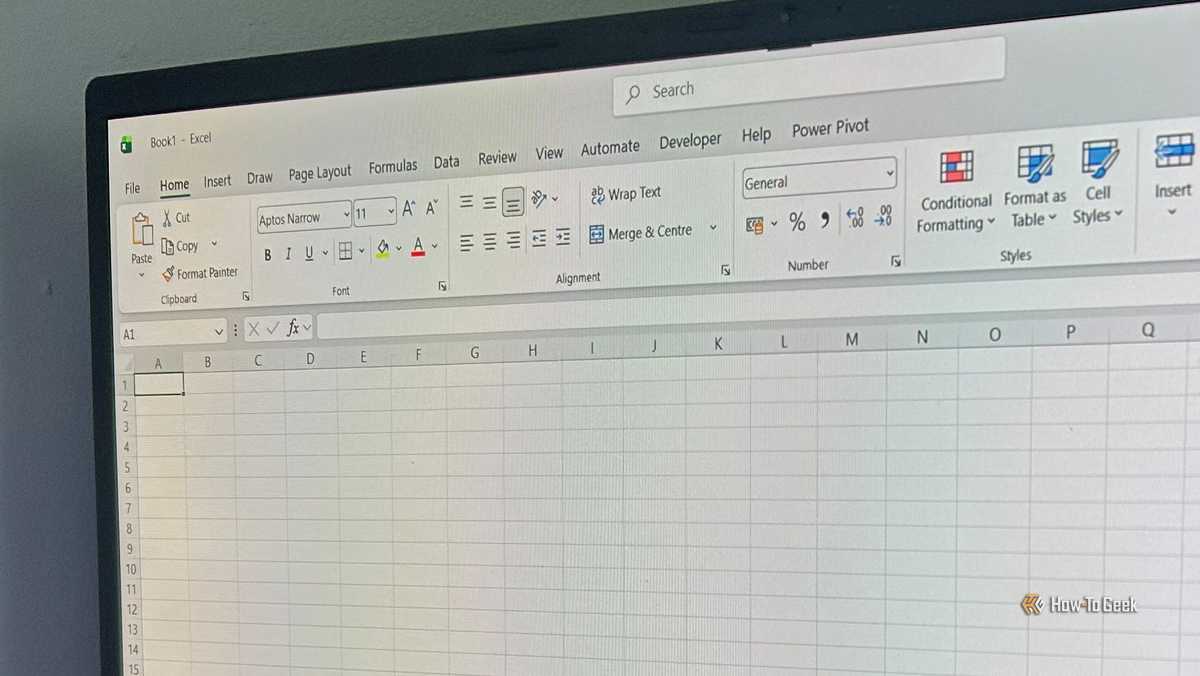
When a label needs to span multiple columns, the instinct is to select those cells, click "Merge & Center," and call it done. It looks clean. It also breaks Excel.
Excel treats your data as a grid. Each row is a record. Each column is a field. Merged cells violate that structure. The moment you try to sort or filter a range with merged cells, Excel throws an error or produces garbage results.
The Fix: Center Across Selection
This built-in feature gives you the visual result of merged cells without breaking the grid:
- Select the cells where you want text centered across.
- Press Ctrl+1 to open the Format Cells dialog.
- Go to the Alignment tab.
- Under the Horizontal dropdown, choose "Center Across Selection."
- Click OK.
Your text spans visually. Every column underneath stays independent. Sorting and filtering work exactly as expected.
2. Manual Formatting Creates Disconnected Data
Most beginners build a "table" by typing into blank cells, manually coloring the header row, and applying bold formatting. To the user, it looks like a table. To Excel, it's a random pile of disconnected data.
This matters when you add new rows. Formulas don't automatically extend. Formatting doesn't carry over. Charts don't update. You end up manually fixing things every time the data changes.
The Fix: Official Excel Tables (Ctrl+T)
Select your data range and press Ctrl+T. Excel converts it into a Structured Table. This does several things automatically:
- New rows inherit formulas and formatting.
- Column headers become named references in formulas.
- Charts and PivotTables update when you add data.
- Filter dropdowns appear on every column.
Structured Tables are the single biggest upgrade beginners can make. They turn static ranges into dynamic data blocks that scale with your work.
3. Hardcoded Values Inside Formulas
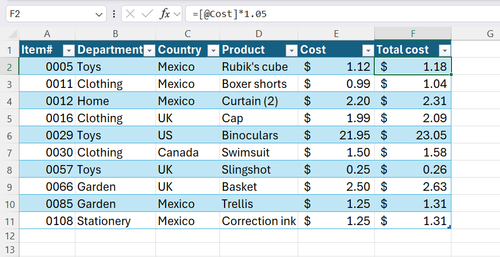
A formula like =B2*1.15 looks fine. It multiplies a value by 1.15. But what happens when the tax rate changes? You hunt through every formula that uses 1.15 and update them one by one.
Worse, six months later, someone else opens the file. They see 1.15 and have no idea what it represents. Is it a tax rate? A markup? An arbitrary guess?
The Fix: Named Cells or Reference Tables
Put constants in a dedicated cell. Give that cell a name (select it, type a name in the Name Box, press Enter). Now your formula becomes =B2*TaxRate. When the rate changes, update one cell. Every formula using that name updates automatically.
For multiple constants, create a reference table in a separate sheet. This approach makes your spreadsheets self-documenting and auditable.
4. Ignoring Absolute References
You write a formula in B2 that references A1. You copy it down. The reference shifts to A2, A3, A4. That's relative referencing, and it's usually what you want.
But sometimes you need a formula to always reference the same cell, no matter where you copy it. Beginners who don't know about absolute references end up with broken formulas the moment they drag or copy.
The Fix: Press F4
When entering a formula, click on a cell reference and press F4. The reference cycles through modes:
- $A$1 — row and column both locked
- A$1 — row locked, column relative
- $A1 — column locked, row relative
- A1 — fully relative
Knowing when to lock references saves hours of tedious fixing. It's one of those small skills that separates casual users from people who actually understand how Excel works.
5. Using VLOOKUP Instead of INDEX/MATCH or XLOOKUP
VLOOKUP is the first lookup function most people learn. It works, but it has limitations. It can only search the leftmost column of a range. Add a column to your data, and your VLOOKUP breaks because the column index numbers shift.
INDEX/MATCH is more flexible. It looks up in any column and returns from any other column. XLOOKUP, available in Microsoft 365 and Excel 2021, simplifies the syntax further and handles errors more gracefully.
The Fix: Learn the Modern Alternatives
VLOOKUP isn't evil. But if you're building spreadsheets that other people will use or maintain, INDEX/MATCH and XLOOKUP are more resilient to structural changes. The time you spend learning them pays back quickly.
Why This Matters Beyond the Spreadsheet
90% of companies rely on Excel for critical financial processes. That means spreadsheet errors don't stay in spreadsheets. They flow into reports, forecasts, and decisions.
Modern tools like Power BI and Python integration expect clean, structured data. Merged cells, manual formatting, and hardcoded values create friction when you try to connect Excel to anything else. The habits that seem harmless when you're working alone become blockers when you need to scale.
Logicity's Take
Frequently Asked Questions
Why are merged cells bad in Excel?
Merged cells break Excel's grid structure. Sorting, filtering, and many formulas fail when ranges contain merged cells. Use Center Across Selection for the same visual effect without the data problems.
What does Ctrl+T do in Excel?
Ctrl+T converts a data range into a Structured Table. This enables automatic formula extension, dynamic chart updates, and built-in filtering. It's one of the most useful shortcuts in Excel.
Should I stop using VLOOKUP?
VLOOKUP works but has limitations. INDEX/MATCH and XLOOKUP are more flexible and less likely to break when your data structure changes. If you're building shared spreadsheets, the modern alternatives are worth learning.
How do I lock a cell reference in Excel?
Press F4 while editing a cell reference. This cycles through absolute ($A$1), mixed ($A1 or A$1), and relative (A1) reference modes.
Messy spreadsheets are a symptom of broader data hygiene problems that derail AI and analytics projects.
Need Help Implementing This?
Source: How-To Geek
Huma Shazia
Senior AI & Tech Writer
اقرأ أيضاً

رأي مغاير: كيف يؤثر اختراق الأمن الداخلي الأميركي على شركاتنا الخاصة؟
في ظل اختراق عقود الأمن الداخلي الأميركي مع شركات خاصة، نناقش تأثير هذا الاختراق على مستقبل الأمن السيبراني. نستعرض الإحصاءات الموثوقة ونناقش كيف يمكن للشركات الخاصة أن تتعامل مع هذا التهديد. استمتع بقراءة هذا التحليل العميق

الإنسان في زمن ما بعد الوجود البشري: نحو نظام للتعايش بين الإنسان والروبوت - Centre for Arab Unity Studies
في هذا المقال، سنناقش كيف يمكن للبشر والروبوتات التعايش في نظام متكامل. سنستعرض التحديات والحلول المحتملة التي تضعها شركات مثل جوجل وأمازون. كما سنلقي نظرة على التوقعات المستقبلية وفقًا لتقرير ماكنزي

إطلاق ناسا لمهمة مأهولة إلى القمر: خطوة تاريخية نحو استكشاف الفضاء
تعتبر المهمة الجديدة خطوة هامة نحو استكشاف الفضاء وتطوير التكنولوجيا. سوف تشمل المهمة إرسال رواد فضاء إلى سطح القمر لconducting تجارب علمية. ستسهم هذه المهمة في تطوير فهمنا للفضاء وتحسين التكنولوجيا المستخدمة في استكشاف الفضاء.