5 Excel Date Functions That Automate Project Timelines
Key Takeaways
- Excel stores all dates as serial numbers starting from January 1, 1900, allowing arithmetic operations on dates
- The TODAY function creates live countdowns that update automatically without manual cell edits
- WORKDAY and NETWORKDAYS handle business day calculations, skipping weekends and holidays
The Secret Behind Excel's Date System
Excel doesn't see dates the way you do. When you type June 1, 2026 into a cell, Excel stores the number 46174. Every date is a serial number counting days since January 1, 1900. This sounds like trivia, but it's the reason you can add 7 to any date and get next week, or subtract two dates to find the gap between them.
There's a quirk worth knowing: Excel treats 1900 as a leap year, which it wasn't. Microsoft kept this bug for compatibility with Lotus 1-2-3, the spreadsheet that dominated before Excel existed. Unless you're tracking events from the early 1900s, this won't affect your work.
The practical upside is that date arithmetic just works. Want to know how many days until a deadline? Subtract today's date from the due date. Want to push all project milestones by two weeks? Add 14. No special functions required for basic operations.
TODAY: The Foundation of Live Timelines
If you've ever opened a spreadsheet and manually typed today's date into a cell, you're solving a problem Excel already solved. The TODAY function returns the current date and updates every time the workbook recalculates. No manual edits. No forgetting to update on Monday morning.
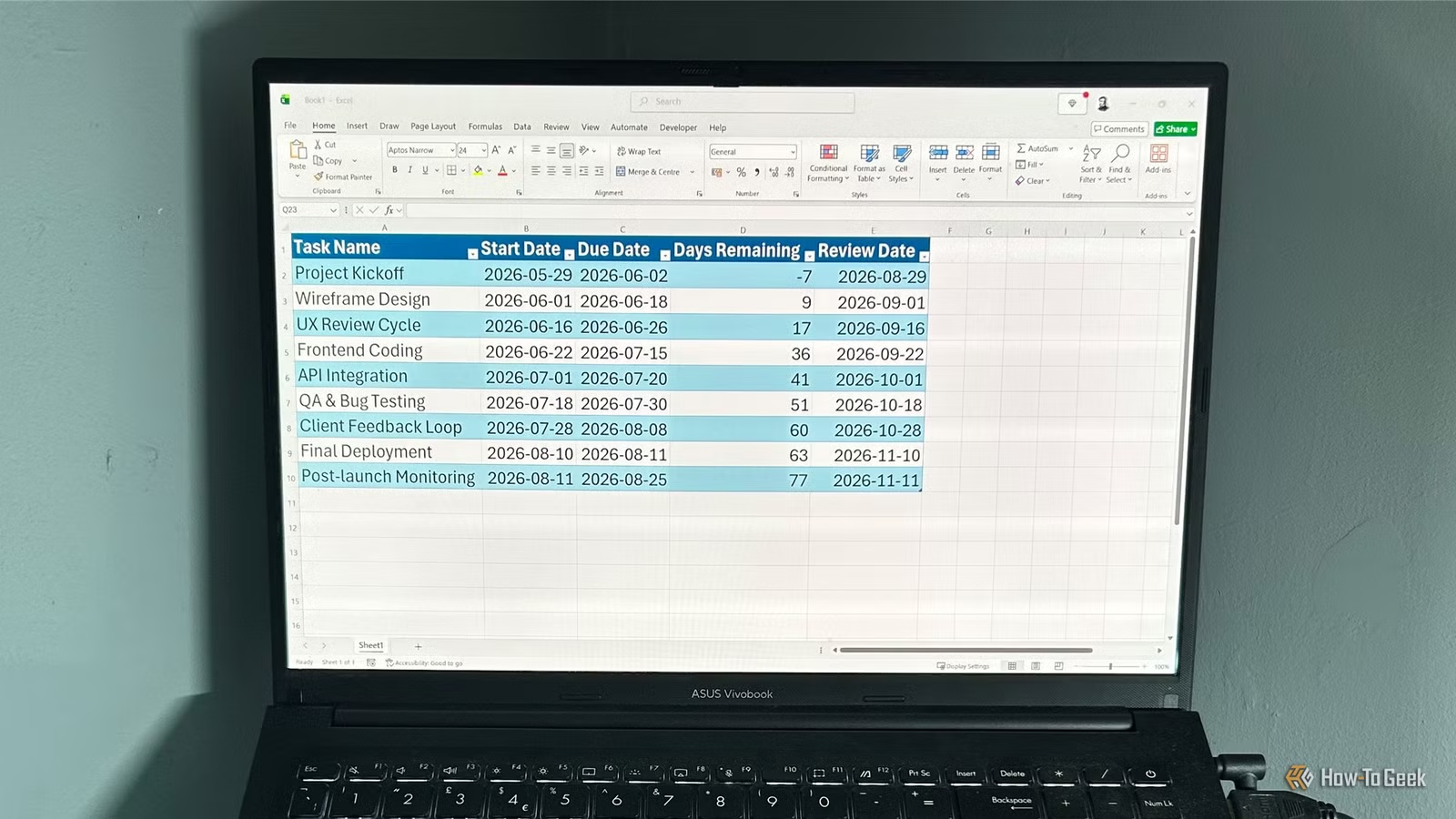
=[@[Due Date]]-TODAY()This formula, placed in a "Days Remaining" column, shows how many days until each task is due. Negative numbers mean you're past deadline. The countdown updates every time you open the file or trigger a recalculation.
Pair this with conditional formatting and you have a visual alert system. Set cells to turn red when Days Remaining drops below 3, yellow below 7, green otherwise. Your timeline now flags urgent items without you scanning every row.
WORKDAY: Calculating Real Business Deadlines
Adding 10 days to a date is easy. Adding 10 business days, skipping weekends and holidays, used to require calendar counting. WORKDAY handles this automatically.
=WORKDAY([@[Start Date]], 10, Holidays)The first argument is your starting date. The second is the number of business days to add. The third, optional argument points to a range of holiday dates to exclude. Keep a separate sheet with company holidays and reference it across all your project trackers.
WORKDAY.INTL extends this further, letting you define custom weekend days. If your team works Sunday through Thursday, you can specify which days count as the weekend instead of defaulting to Saturday-Sunday.
NETWORKDAYS: Counting Business Days Between Dates
WORKDAY gives you a future date. NETWORKDAYS does the reverse: given two dates, it tells you how many business days fall between them.
=NETWORKDAYS([@[Start Date]], [@[End Date]], Holidays)This is essential for effort tracking. If a task ran from June 1 to June 15, how many working days did it actually consume? NETWORKDAYS gives you 10, not 14. Your velocity calculations stay accurate.
Like WORKDAY, there's a NETWORKDAYS.INTL variant for custom weekend definitions. Both functions accept the same holiday range parameter.
DATEDIF: The Hidden Duration Calculator
DATEDIF is strange. It exists in Excel, works reliably, but doesn't appear in the function autocomplete. Microsoft inherited it from Lotus 1-2-3 and never fully documented it. Despite this, it's the cleanest way to calculate durations in years, months, or days.
Code sample: =DATEDIF([@[Start Date]], [@[End Date]], "M")
The third argument specifies the unit. "Y" returns complete years, "M" returns complete months, "D" returns days. You can also use "YM" for months ignoring years, or "MD" for days ignoring months. This is useful for displaying project duration as "3 months, 12 days" rather than a raw day count.
Building an Automated Project Tracker
These functions work best inside Excel Tables. Press Ctrl+T to convert a range into a table. Tables give you structured references like [@[Due Date]] that automatically extend when you add rows. Formulas copy themselves down. New tasks inherit your timeline logic.
A minimal project tracker needs five columns: Task Name, Start Date, Duration (in business days), Due Date (calculated via WORKDAY), and Days Remaining (calculated via TODAY). From there, you can add status columns, owner assignments, and priority flags.
The How-To Geek guide includes a downloadable workbook with a table named ProjectTracker that demonstrates these patterns. It's a good starting point if you want to see the formulas in context before building your own.
“Excel remains the most powerful and flexible tool in the project manager's arsenal, provided you stop treating it like a digital notepad and start treating it like a database.”
— Tony Phillips, Document Producer & Data Manager
When Excel Isn't the Right Tool
Excel handles small-to-mid-sized project tracking well. Reddit's r/excel community swaps custom Gantt chart templates regularly, and the consensus is that Excel shines for budgeting, status reporting, and single-team coordination.
The limits appear when you need multi-user collaboration, audit trails, or integration with ticketing systems. Jira, Asana, and similar tools exist because spreadsheets become unmanageable at scale. If you're constantly emailing updated versions or merging conflicting edits, you've outgrown Excel for that particular workflow.
The advantage of learning date functions is portability. These skills apply whether you're prototyping a tracker before moving to dedicated software, or handling a side project that doesn't justify a subscription.
Logicity's Take
Quick Reference: Which Function When
- Need today's date that updates automatically? Use TODAY()
- Need a deadline X business days from now? Use WORKDAY()
- Need to count business days between two dates? Use NETWORKDAYS()
- Need duration in months or years? Use DATEDIF()
- Need simple day arithmetic? Just add or subtract numbers directly
Frequently Asked Questions
Why does Excel treat 1900 as a leap year when it wasn't?
Microsoft maintained this bug for compatibility with Lotus 1-2-3. It only affects date calculations involving dates before March 1, 1900, which is rarely relevant for modern project management.
How do I exclude company holidays from WORKDAY calculations?
Create a list of holiday dates in a named range or separate column, then reference that range as the third argument in WORKDAY or NETWORKDAYS. Both functions will skip those dates.
Why doesn't DATEDIF appear in Excel's formula autocomplete?
Microsoft inherited DATEDIF from Lotus 1-2-3 and never fully integrated it into Excel's documentation. The function works reliably but must be typed manually.
Can I use these functions in Google Sheets?
Yes. TODAY, WORKDAY, NETWORKDAYS, and DATEDIF all work in Google Sheets with identical syntax. The underlying date serial number system is the same.
What's the difference between WORKDAY and WORKDAY.INTL?
WORKDAY assumes Saturday-Sunday weekends. WORKDAY.INTL lets you specify custom weekend days, useful for teams that work non-standard schedules.
For readers looking to boost productivity without cloud dependencies
Need Help Implementing This?
Source: How-To Geek
Manaal Khan
Tech & Innovation Writer
اقرأ أيضاً

رأي مغاير: كيف يؤثر اختراق الأمن الداخلي الأميركي على شركاتنا الخاصة؟
في ظل اختراق عقود الأمن الداخلي الأميركي مع شركات خاصة، نناقش تأثير هذا الاختراق على مستقبل الأمن السيبراني. نستعرض الإحصاءات الموثوقة ونناقش كيف يمكن للشركات الخاصة أن تتعامل مع هذا التهديد. استمتع بقراءة هذا التحليل العميق

الإنسان في زمن ما بعد الوجود البشري: نحو نظام للتعايش بين الإنسان والروبوت - Centre for Arab Unity Studies
في هذا المقال، سنناقش كيف يمكن للبشر والروبوتات التعايش في نظام متكامل. سنستعرض التحديات والحلول المحتملة التي تضعها شركات مثل جوجل وأمازون. كما سنلقي نظرة على التوقعات المستقبلية وفقًا لتقرير ماكنزي

إطلاق ناسا لمهمة مأهولة إلى القمر: خطوة تاريخية نحو استكشاف الفضاء
تعتبر المهمة الجديدة خطوة هامة نحو استكشاف الفضاء وتطوير التكنولوجيا. سوف تشمل المهمة إرسال رواد فضاء إلى سطح القمر لconducting تجارب علمية. ستسهم هذه المهمة في تطوير فهمنا للفضاء وتحسين التكنولوجيا المستخدمة في استكشاف الفضاء.