4 Browser Console Tricks No Extension Can Match
Key Takeaways
- The browser console runs with the same privileges as a site's own scripts, bypassing extension sandboxes
- You can make any webpage fully editable with a single JavaScript command
- Hidden page elements can be revealed using a simple query selector command
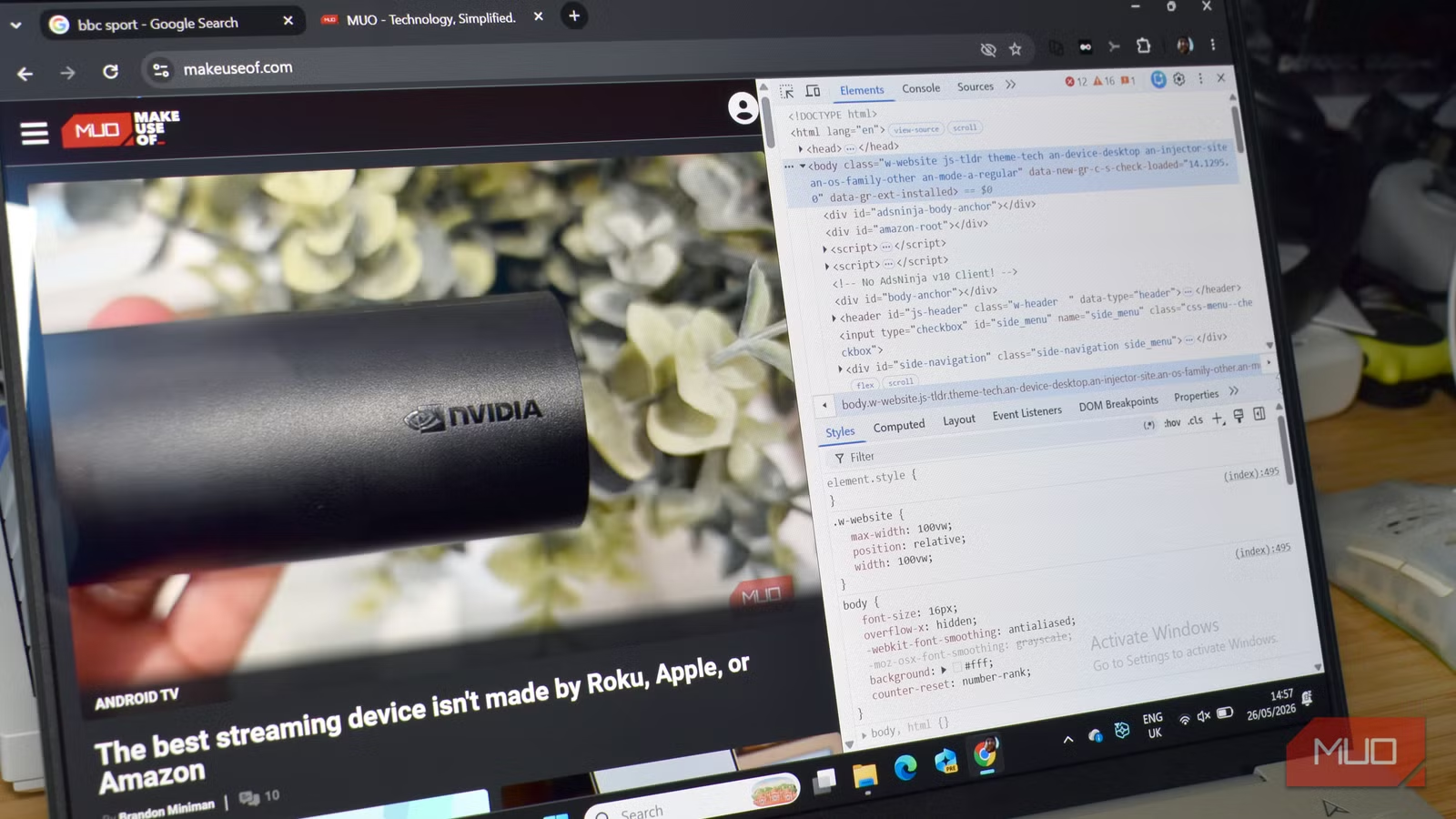
Most people have hit F12 at some point and stared at the browser console. It looks like a garbled mess of errors and warnings. But that wall of text hides something powerful: a live JavaScript environment running directly inside your browser.
Unlike extensions, which must request permissions and operate within security sandboxes, the console runs with the same privileges as a site's own scripts. That makes it the ultimate tool for developers and power users who want surgical control over any webpage.
“The browser console isn't just for errors; it's the most powerful, built-in IDE you have on your computer for interacting with the live web.”
— Gavin Phillips, Segment Lead at MakeUseOf
Here are four things you can do in the console that no extension can replicate.
1. Edit Any Text on Any Page
This one is fun. You can turn any webpage into a live document, editing headlines, prices, and body text as if you were working in a word processor.
Press F12 to open the console, select the Console tab, and enter this command:
document.designMode = 'on'The entire page becomes editable. Click anywhere and start typing. Change product prices, swap out headlines, rewrite articles. None of this is permanent. Hit refresh and everything reverts to normal.
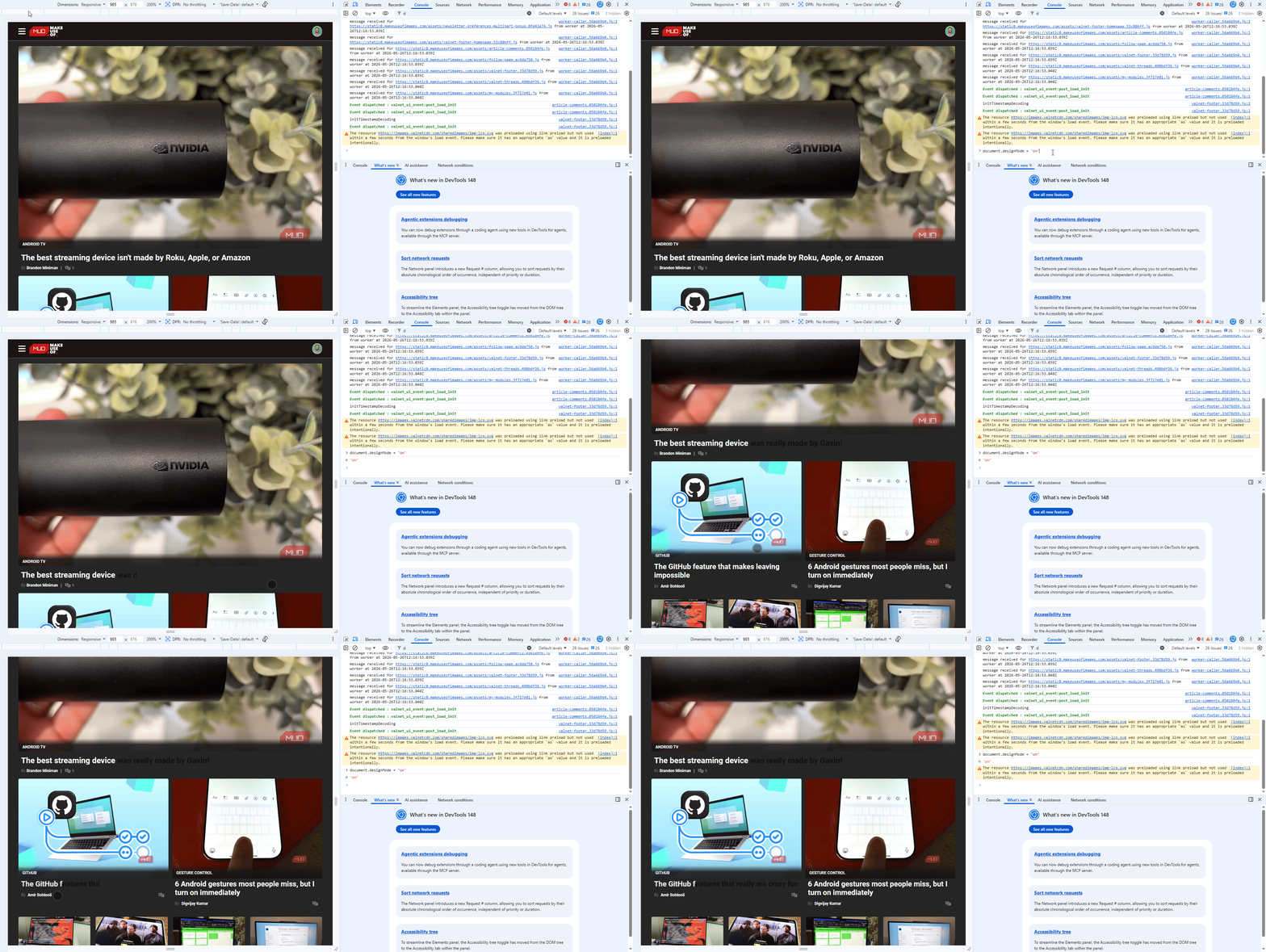
Developers use this to test copy changes before pushing them live. But it's also useful for creating screenshots, testing layouts, or just having some fun.
You can target specific elements too. Want to turn a headline red?
document.querySelector('h1').style.color = 'red'Need to change the body font?
document.querySelector('body').style.fontFamily = 'Georgia'2. Find Everything a Page Is Hiding
Every webpage has hidden elements. Some are boring: collapsed menus, inactive tabs, things that appear only when you interact with something. But some are more interesting.
This command returns a list of everything the page has loaded but isn't showing you:
Code sample: document.querySelectorAll('[hidden], [style="display: none"], [style="visibility: hidden"]')
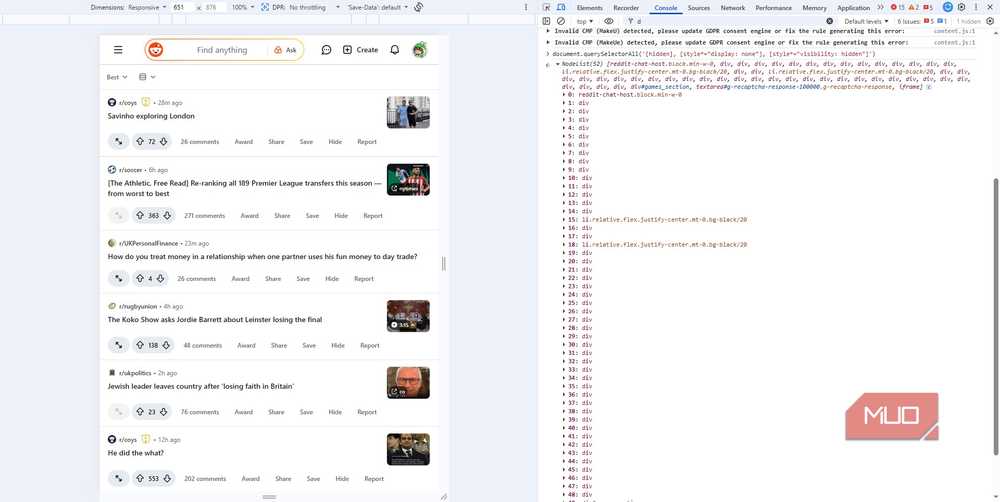
The console returns a NodeList of every hidden element. Click any item to see it in the Elements panel. You might find pre-loaded content, hidden form fields, or elements waiting for specific user actions.
Extensions can't do this reliably. They're sandboxed and limited to the APIs browsers expose. The console has direct access to the DOM.
Why Extensions Can't Match This
Browser extensions run in a restricted environment. They must declare permissions in advance, and many operations are simply blocked for security reasons.
The console runs with the same privileges as the page's own JavaScript. It can read and modify anything the page can. No permission requests. No sandboxing. No API limitations.
According to a 2025 developer survey, 76% of professional developers use browser developer tools daily for debugging or inspection. Chrome and Edge offer 12+ native helper functions in the console that aren't exposed through standard extension APIs.
Logicity's Take
Getting Started
Open your browser's developer tools with F12 on Windows or Cmd+Option+I on Mac. Click the Console tab. Start typing JavaScript commands and press Enter.
The console remembers your command history. Press the up arrow to cycle through previous commands. Type 'clear()' to wipe the console output.
For deeper learning, browser vendors publish extensive documentation. Chrome's DevTools docs cover everything from network inspection to performance profiling.
More power-user techniques to avoid common productivity pitfalls
Frequently Asked Questions
Is it safe to run commands in the browser console?
Yes, as long as you understand what you're typing. Never paste code from untrusted sources. Malicious scripts could steal cookies or session data.
Do changes made in the console affect other users?
No. Changes only appear in your browser and disappear when you refresh. You're not modifying the actual website.
Can I save console changes permanently?
Not directly. You'd need to copy the modified HTML or CSS and save it locally, or use browser extensions designed for local overrides.
Which browsers have a developer console?
All major browsers: Chrome, Firefox, Safari, Edge, and Opera. The keyboard shortcut is usually F12 or Cmd+Option+I on Mac.
Need Help Implementing This?
Source: MakeUseOf
Huma Shazia
Senior AI & Tech Writer
اقرأ أيضاً

رأي مغاير: كيف يؤثر اختراق الأمن الداخلي الأميركي على شركاتنا الخاصة؟
في ظل اختراق عقود الأمن الداخلي الأميركي مع شركات خاصة، نناقش تأثير هذا الاختراق على مستقبل الأمن السيبراني. نستعرض الإحصاءات الموثوقة ونناقش كيف يمكن للشركات الخاصة أن تتعامل مع هذا التهديد. استمتع بقراءة هذا التحليل العميق

الإنسان في زمن ما بعد الوجود البشري: نحو نظام للتعايش بين الإنسان والروبوت - Centre for Arab Unity Studies
في هذا المقال، سنناقش كيف يمكن للبشر والروبوتات التعايش في نظام متكامل. سنستعرض التحديات والحلول المحتملة التي تضعها شركات مثل جوجل وأمازون. كما سنلقي نظرة على التوقعات المستقبلية وفقًا لتقرير ماكنزي

إطلاق ناسا لمهمة مأهولة إلى القمر: خطوة تاريخية نحو استكشاف الفضاء
تعتبر المهمة الجديدة خطوة هامة نحو استكشاف الفضاء وتطوير التكنولوجيا. سوف تشمل المهمة إرسال رواد فضاء إلى سطح القمر لconducting تجارب علمية. ستسهم هذه المهمة في تطوير فهمنا للفضاء وتحسين التكنولوجيا المستخدمة في استكشاف الفضاء.